How Can We Help?
Set up footer
The Goarch theme includes extensive footer controls, allowing you to manage site branding, contact information, menu locations, recent blog posts, and copyright notices directly from the WordPress admin dashboard.
Step 1: Manage Footer Settings in Theme Options
To configure the layout, logo, contact details, and display toggles for your footer:
- Log into your WordPress admin dashboard.
- Navigate to Theme Options > Footer.
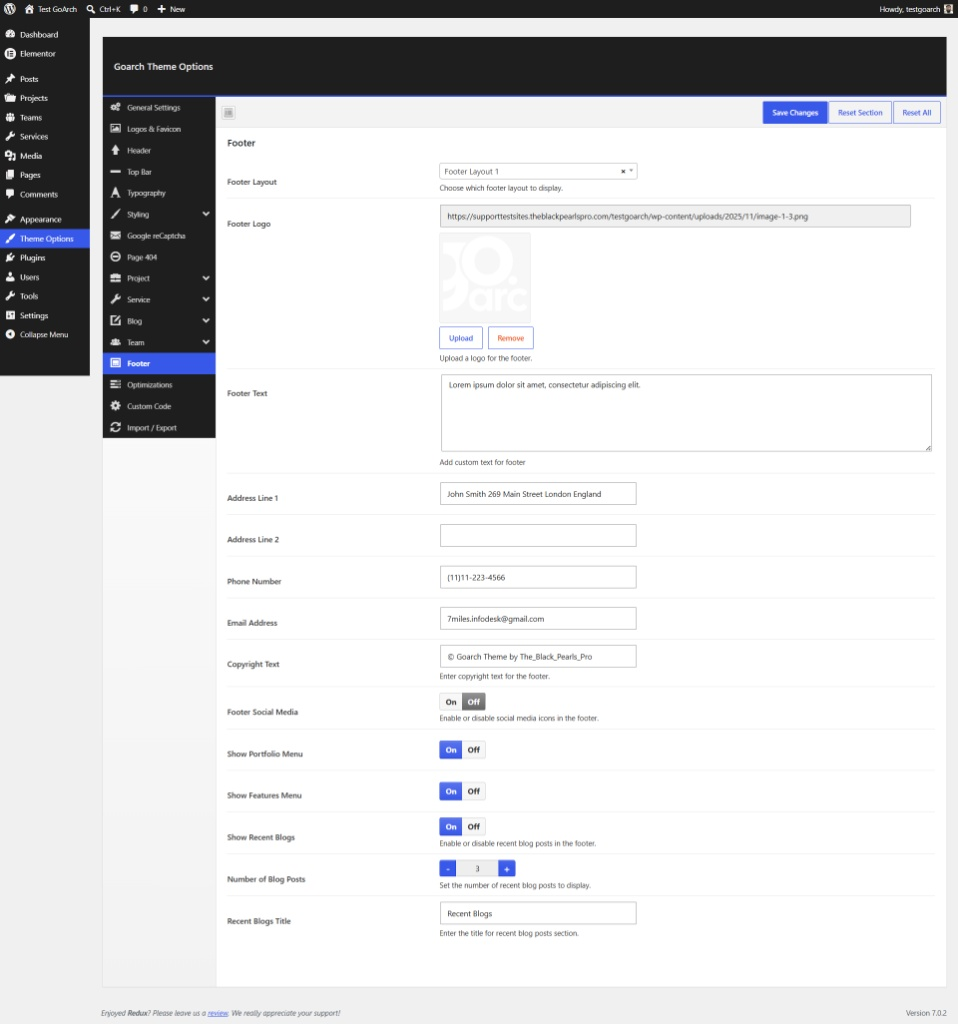
Available Settings Breakdown:
- Footer Layout: Choose your preferred layout preset from the dropdown menu (e.g.,
Footer Layout 1). - Footer Logo: Click Upload to select or upload a custom footer logo image.
- Footer Text: Enter a brief company summary or bio that displays directly below your logo.
- Address Line 1 & Line 2: Input your physical office or business address.
- Phone Number: Display your customer support or contact line (e.g.,
(11)11-223-4566). - Email Address: Specify your official inquiry or support email (e.g.,
7miles.infodesk@gmail.com). - Copyright Text: Set the copyright text displayed at the bottom bar of your website.
- Footer Social Media: Toggle On or Off to show or hide social media icon links.
- Show Portfolio Menu: Toggle On to display the dedicated portfolio menu column.
- Show Features Menu: Toggle On to display the dedicated features/services menu column.
- Show Recent Blogs: Enable or disable the display of recent posts in the footer.
- Number of Blog Posts: Set how many recent posts to display using the stepper controls (e.g.,
3). - Recent Blogs Title: Customize the heading title for the recent posts section.
- Number of Blog Posts: Set how many recent posts to display using the stepper controls (e.g.,
- Click Save Changes at the top right to save your options.
Step 2: Set Up Footer Navigation Menus
Goarch supports dedicated footer menu locations for displaying selected project portfolios and architectural services.
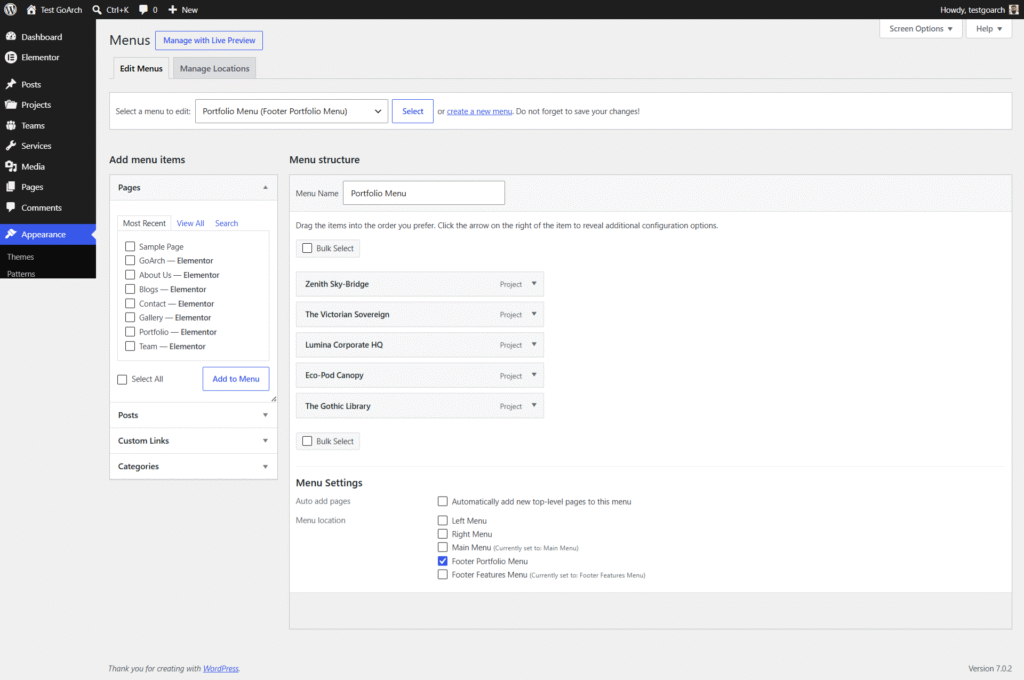
1. Portfolio Menu
To display key projects in your footer:
- Navigate to Appearance > Menus.
- Select or create a menu named Portfolio Menu.
- Add your architectural items under the Projects dropdown tab.
- Check the Footer Portfolio Menu box under Menu Settings.
- Click Save Menu.
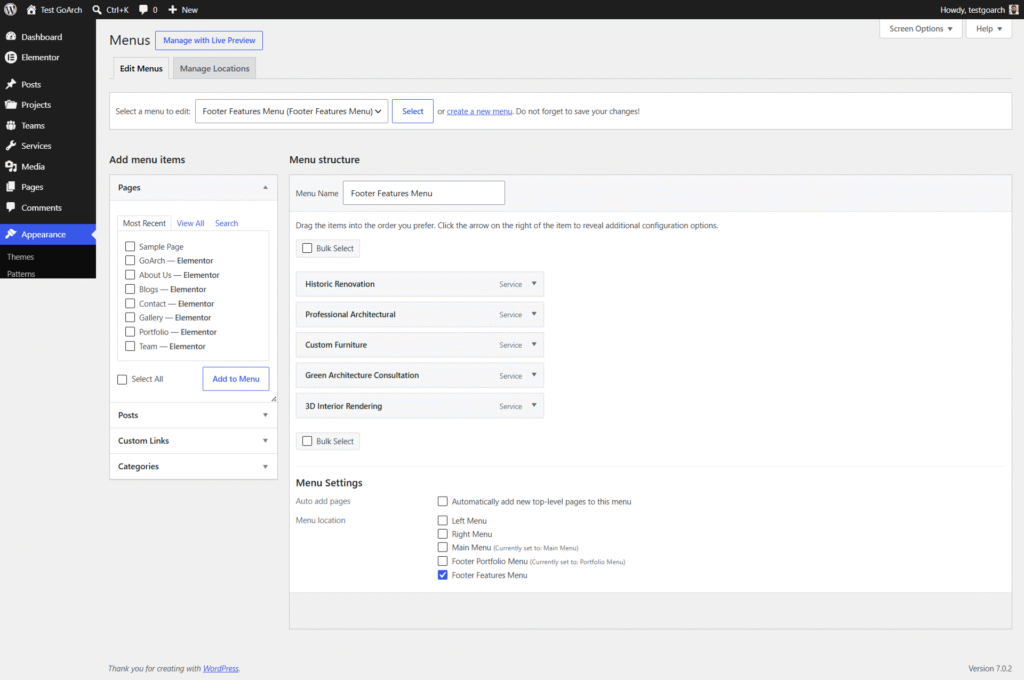
2. Features / Services Menu
To display core service offerings in your footer:
- Go to Appearance > Menus.
- Select or create a menu named Footer Features Menu.
- Add your service items under the Services dropdown tab.
- Check the Footer Features Menu box under Menu Settings.
- Click Save Menu.
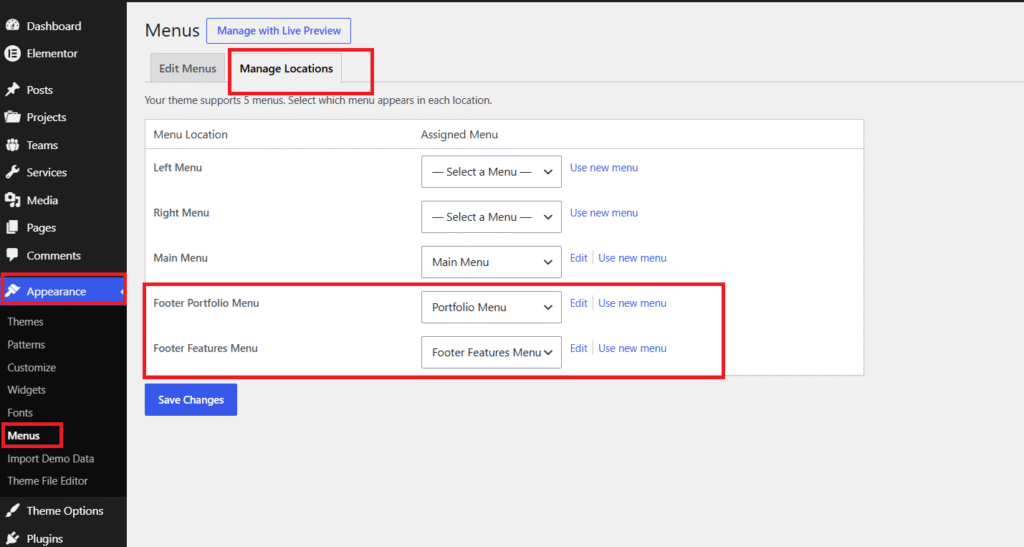
3. Assign Menu Locations
To confirm your custom menus are properly linked to the theme locations:
- Go to Appearance > Menus and click the Manage Locations tab at the top.
- Ensure Footer Portfolio Menu is assigned to
Portfolio Menu. - Ensure Footer Features Menu is assigned to
Footer Features Menu. - Click Save Changes.
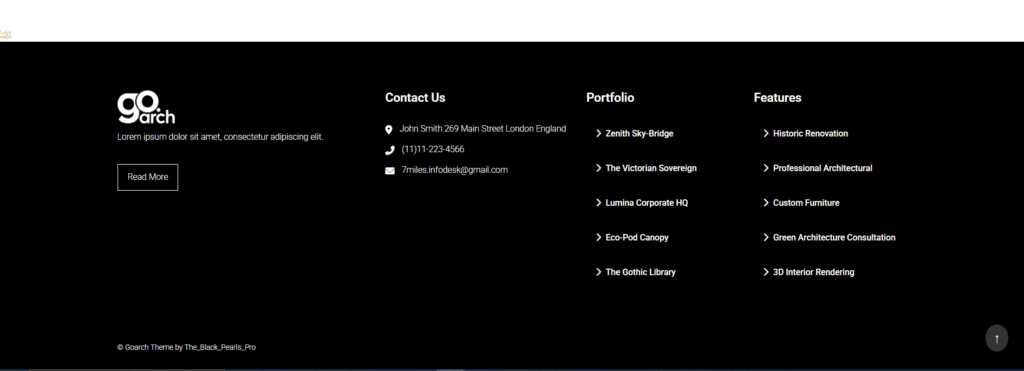
Live Frontend Result
Once configured, your theme footer will display structured columns containing your logo, description text, contact details, custom project links, service feature links, and copyright text: