
How Can We Help?
GoArch Team Custom
The Goarch Team Custom widget is a versatile, feature-rich Elementor element engineered to showcase your company’s staff, architects, designers, or executive leadership team. Offering choices between flexible manual input and dynamic custom post types, alongside multiple layout demos, this widget allows you to display team profiles complete with detailed bios, contact information, and direct social media connectivity.
Feature Overview
- Dual Data Sourcing: Populated using either a flexible internal manual repeater list or fed dynamically through a dedicated WordPress Team Custom Post Type loop.
- Multiple Layout Interpretations: Switch instantly between distinct layout variations (Demo 1, Demo 2, and Demo 3) to match your website’s graphical framework.
- Comprehensive Profile Architecture: Each member profile supports an avatar image, text summary, specific position title, email, direct website link, and five distinct social network channels.
- Granular Style Control: Take full command over typography, responsive internal padding, alignment colors, and mouse-hover states for social link elements.
Step-by-Step Instructions
Follow these instructions to integrate and configure the Goarch Team Custom widget on your webpage:
- Launch your target page inside the active Elementor editor canvas interface.
- Search for Goarch Team Custom in the left-hand elements menu index.
- Drag the widget item and drop it into your preferred layout column container.
- Define your data sourcing parameters and select your structural demo layout variant under the Content tab.
- Expand the repeater fields to fill out team member images, personal bios, and networking links.
- Pivot to the Style tab to systematically alter typography values, frame padding metrics, and color treatments.
Explanation of Settings
Content Tab
The Content tab manages how your staff records are retrieved, layouts are mapped, and personal profile information is parsed.
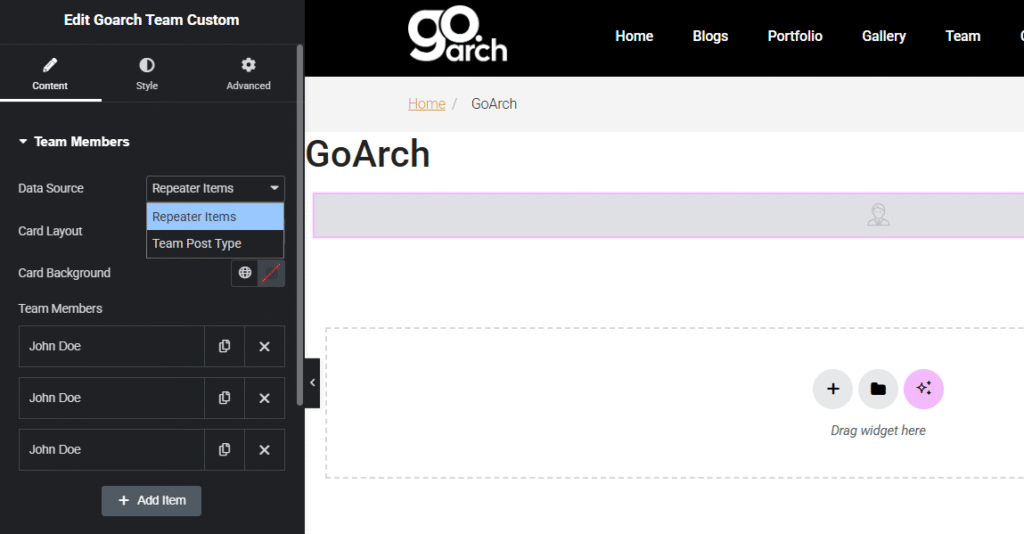
Team Members Framework
- Data Source: Select where the widget queries and pulls its core team data from.
- Repeater Items: Allows you to manually type, build, and reorder staff profiles directly within Elementor using the local item organizer list.
- Team Post Type: Queries team member records dynamically from an established global WordPress custom post type archive.
- Card Background: Sets a core fallback background accent or color block applied directly to the primary structural wrapper framework.
- Team Members Repeater List: When the data source is locked to Repeater Items, this list displays your active entries. Use the duplicate or delete icons next to existing rows (e.g., John Doe) to alter the loop, or click + Add Item to append a blank card entry.
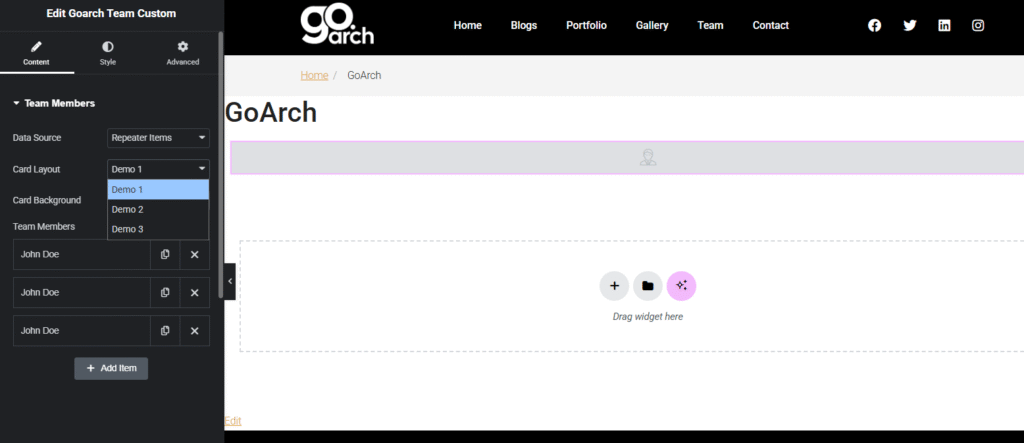
Layout Settings
- Card Layout: Toggle between the built-in presentation structures to completely transform how profile frames display on the front-end layout grid:
- Demo 1: Renders a sophisticated, high-contrast block presentation featuring modern side-by-side element structures, as visible in the workspace preview window.
- Demo 2: Generates a traditional grid style card with center-aligned text hierarchies.
- Demo 3: Offers an alternative architectural profile alignment suited for creative studios.
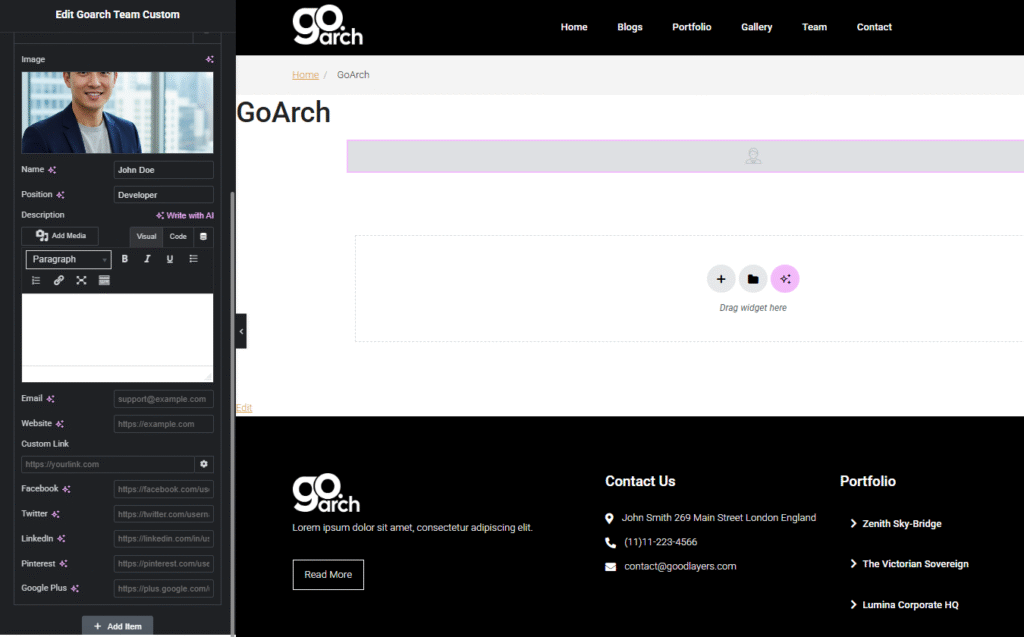
Individual Item Parameters
Expanding an individual member element block exposes a specialized directory suite for that single staff profile:
- Image: Upload or select a high-resolution staff portrait from your WordPress Media Library.
- Name & Position: Text entry slots to declare the member’s legal name and official corporate title (e.g.,
John Doe,Developer). - Description: A comprehensive rich-text field editor equipped with formatting tabs to outline individual bios, project milestones, or educational credentials.
- Contact Links: Fields for Email (e.g.,
support@example.com), Website (e.g.,[https://example.com](https://example.com)), and an overarching Custom Link string. - Social Profiles: Input direct URL profile endpoints into designated social media fields, including Facebook, Twitter, LinkedIn, Pinterest, and Google Plus. Leaving a social field blank automatically omits that specific icon asset from the live card frame.
Style Tab
The Style tab provides complete control over typographic families, color palettes, and responsive grid layouts.
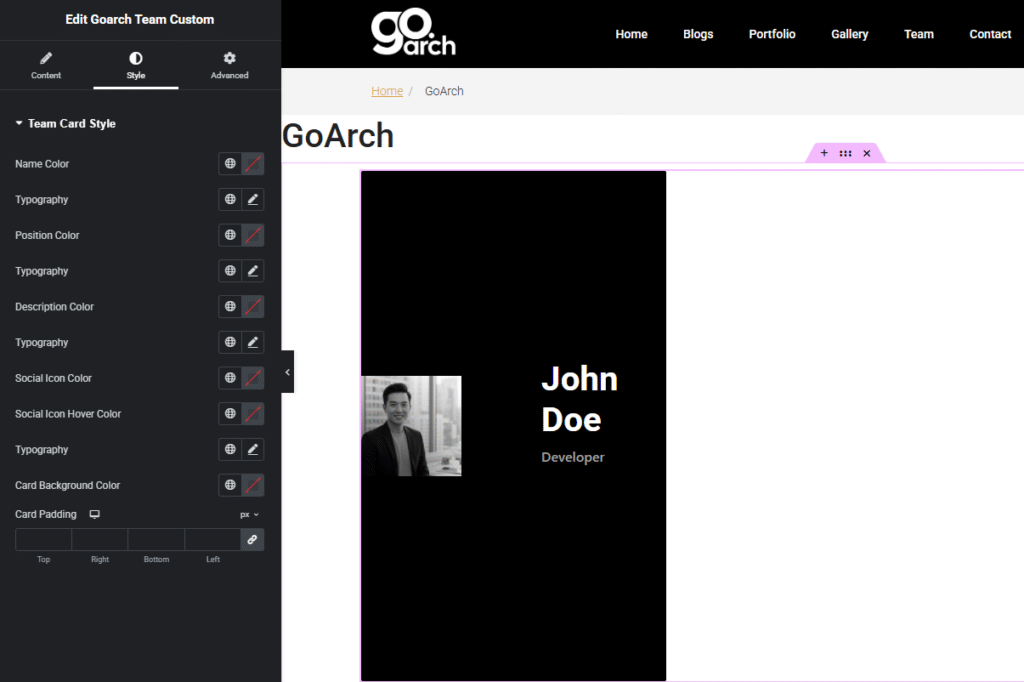
Team Card Style
- Name Color & Typography: Edit the color swatches, font families, tracking space, line leading, and thickness configurations assigned to primary staff names.
- Position Color & Typography: Direct individual design properties, sizing metrics, and style scales for the subtitle position field (e.g., Developer).
- Description Color & Typography: Format the paragraph spacing, color hues, and text alignments belonging to the primary bio description text.
- Social Icon Color & Social Icon Hover Color: Define separate baseline and interactive hover colors for the integrated social navigation anchor icons.
- Card Background Color: Modify the isolated inner background color fill applied directly behind each staff card profile.
- Card Padding: Adjust responsive layout spacing around card perimeters in pixels (
px). Click the responsive device desktop icon to switch between dedicated desktop, tablet, or mobile configuration layers.
Advanced Tab
The Advanced Tab includes standard parent-level technical rules native to Elementor. This section lets you manage custom layout margins, apply entrance motion animations, configure structural z-index positioning, declare custom developer CSS classes or ID targets, or toggle responsive visibility masks to hide or show team grids based on user viewport screens.
Tips & Best Practices
- Synchronize Image Pre-cropping: Because layout variants like Demo 1 place portrait photos alongside text, use identical image aspect ratios across all member entries. Mixing square crops with long vertical dimensions will disrupt alignment rows.
- Incorporate Keywords into Bios: Use the rich-text Description area to organically include specialized role keywords (e.g., “Senior Lead Landscape Architect” or “BIM Modeling Expert”). This turns your company overview page into an organic SEO asset.
- Clean up Social Links: Ensure you paste full, absolute URLs (including
https://) into the social profile text entries. Entering partial handles instead of complete page links can result in broken navigation endpoints for site visitors.
Troubleshooting
Social media icons are missing on the front end
Open your team member’s repeater record within the Content tab and ensure you have filled out a complete link within that specific social profile network field. If a network field is left empty, the widget automatically hides its corresponding icon vector asset to maintain a clean layout.
Layout cards display with uneven horizontal heights
This behavior occurs when individual team member description bios vary dramatically in text volume. To fix this, aim for consistent word counts within the Description box across all active profile containers, or apply a dedicated minimum height asset value inside your Advanced custom CSS panel.