How Can We Help?
Team
Team Archive Settings
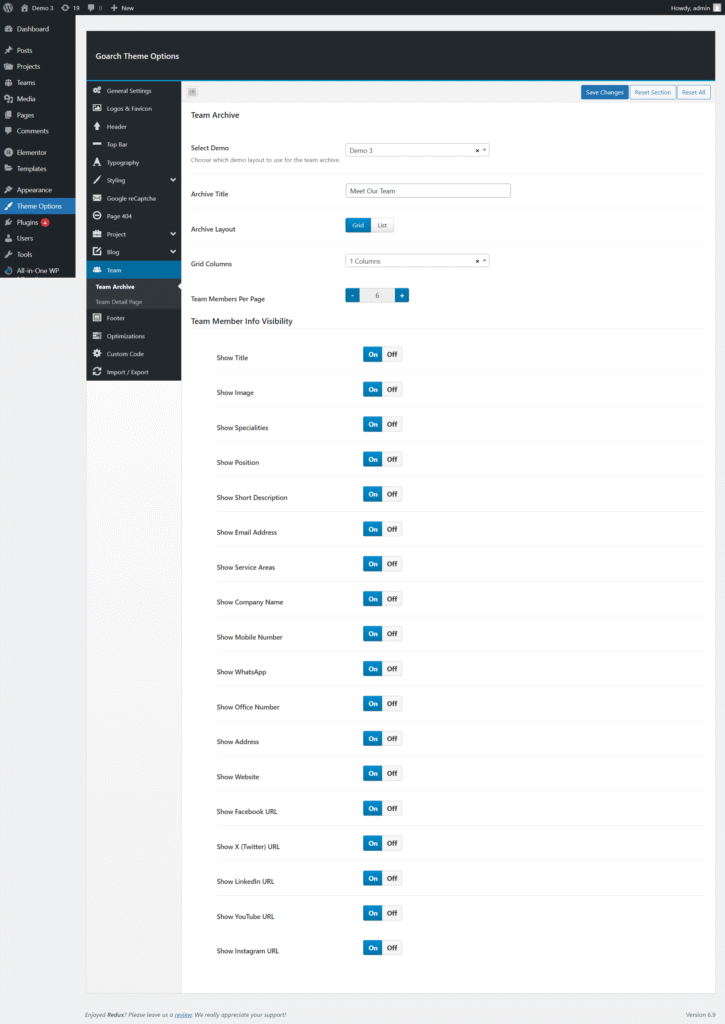
The Team Archive section in the GoArch theme allows you to control how your team members are displayed on the main team listing page. These settings help you customize the layout, design style, and visible information for each team member without using custom code.
You can access these options from:
WordPress Dashboard → Theme Options → Team → Team Archive
Team Archive Options
1. Select Demo
Choose which demo layout style to use for the team archive page.
- This option lets you apply a predefined design style.
- Different demos may vary in spacing, typography, and card design.
Example: Demo 3
2. Archive Title
Set the main heading for the team archive page.
- This title appears at the top of the team listing.
- You can customize it to match your site’s branding.
Example: Meet Our Team
3. Archive Layout
Choose how team members are displayed on the archive page.
Available options:
- Grid – Displays team members in a grid layout.
- List – Displays team members in a vertical list layout.
Use Grid for a modern, visual presentation or List for a more detailed layout.
4. Grid Columns
This option is available when the Grid layout is selected.
- Choose the number of columns for displaying team members.
- Fewer columns create larger profile cards, while more columns show more members per row.
Example: 1 Column
5. Team Members Per Page
Control how many team members are displayed per page.
- Use the + and – buttons to increase or decrease the number.
- Pagination will automatically appear if there are more members than the selected number.
Example: 6 team members per page
Team Member Info Visibility
These toggle options allow you to show or hide specific information for each team member on the archive page.
Basic Information
- Show Title – Displays the team member’s name.
- Show Image – Displays the team member’s profile image.
- Show Specialities – Displays areas of expertise or skills.
- Show Position – Displays the job title or role.
- Show Short Description – Displays a brief bio or summary.
Contact Information
- Show Email Address
- Show Mobile Number
- Show WhatsApp
- Show Office Number
- Show Address
- Show Website
- Show Company Name
- Show Service Areas
These options allow visitors to easily contact or learn more about each team member.
Social Media Links
Enable or disable social profile links for team members:
- Show Facebook URL
- Show X (Twitter) URL
- Show LinkedIn URL
- Show YouTube URL
- Show Instagram URL
When enabled, social icons will appear on the team member card if the corresponding URLs are filled in.
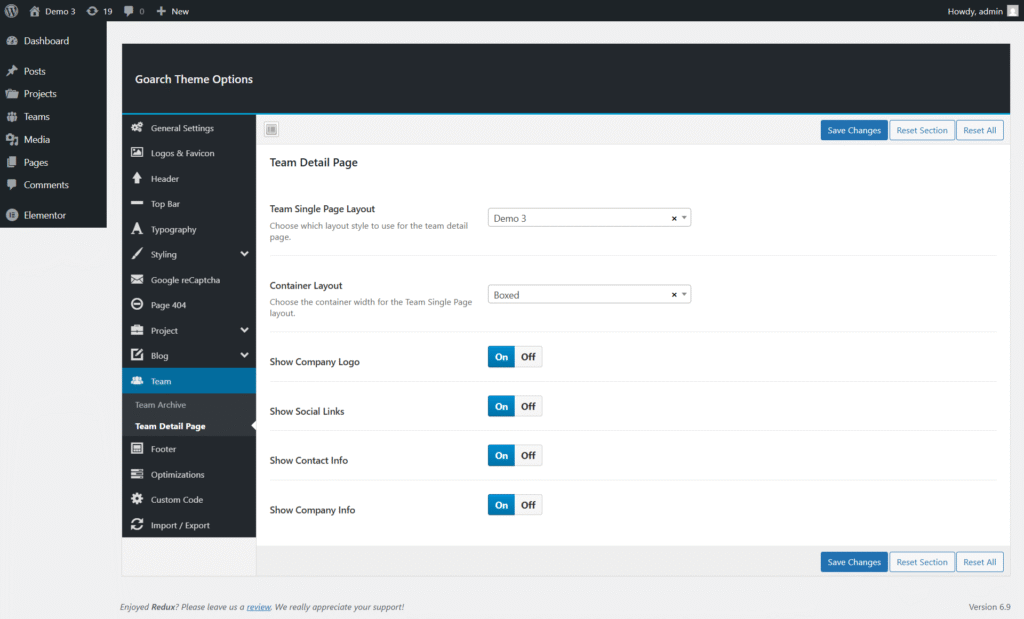
Team Detail Page Settings – GoArch Theme
The Team Detail Page settings in the GoArch theme allow you to control the layout and visibility of elements on individual team member pages. These options help you customize how team profiles appear to visitors, ensuring consistency with your site’s design and branding.
You can access these settings from:
WordPress Dashboard → GoArch Theme Options → Team → Team Detail Page
Team Single Page Layout
Option: Team Single Page Layout
Description:
This setting allows you to choose the layout style used for individual team member detail pages.
Available Options:
- Demo 1
- Demo 2
- Demo 3 (as shown in the screenshot)
Each demo offers a different visual arrangement for the team member’s photo, description, and additional information. Select the layout that best fits your website’s design.
Container Layout
Option: Container Layout
Description:
Controls the width of the content area on the Team Single Page.
Available Options:
- Boxed – Content is displayed within a fixed-width container.
- Full Width – Content stretches across the entire screen.
Using the Boxed layout provides a more compact and structured appearance, especially suitable for professional or corporate websites.
Show Company Logo
Option: Show Company Logo
Description:
Enable or disable the display of the company logo on the team member detail page.
Settings:
- On – Displays the company logo.
- Off – Hides the company logo.
This option is useful if team members represent a specific brand or organization.
Show Social Links
Option: Show Social Links
Description:
Controls whether social media icons (such as LinkedIn, Twitter, or Facebook) appear on the team member’s page.
Settings:
- On – Displays social media links.
- Off – Hides social media links.
Enable this option to make it easier for visitors to connect with your team members online.
Show Contact Info
Option: Show Contact Info
Description:
Determines whether contact details such as email address or phone number are displayed.
Settings:
- On – Shows contact information.
- Off – Hides contact information.
This is ideal for teams that want to encourage direct communication.
Show Company Info
Option: Show Company Info
Description:
Controls the visibility of additional company-related information on the team detail page.
Settings:
- On – Displays company information.
- Off – Hides company information.
This option helps provide more context about the organization behind the team member.