
How Can We Help?
Contact forms
The Goarch theme includes a dedicated Goarch Contact Form widget for Elementor. This built-in widget allows you to create contact and inquiry forms tailored for architectural studios and design agencies directly inside the Elementor page builder.
Step 1: Accessing the Contact Form Widget in Elementor
To edit or add the contact form to your page:
- Open your contact page or desired section using the Edit with Elementor builder.
- Select or drag the Goarch Contact Form widget into your desired layout container.
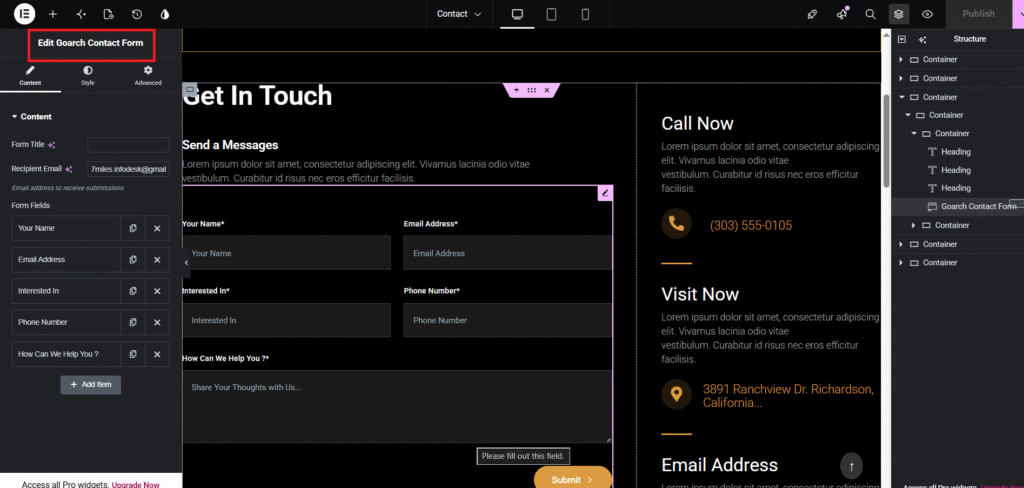
- Select the widget to open the Edit Goarch Contact Form panel in the left sidebar.
Step 2: Configuring Content Settings
Under the Content tab in the widget settings panel, you can configure submission routing and manage input fields:
1. General Settings
- Form Title: Enter an optional internal or visible heading for the form.
- Recipient Email: Specify the destination email address where client form submissions will be routed (e.g.,
test@gmail.com).
2. Form Fields Management
The form includes pre-configured standard fields required for architectural inquiries:
- Your Name: Text input field for the client’s full name.
- Email Address: Required field for client contact details.
- Interested In: Custom selector or text input field to specify project types (e.g., Interior Design, 3D Rendering, Historic Renovation).
- Phone Number: Input field for client callback phone details.
- How Can We Help You ?: Textarea block for detailed project briefs and client messages.
Adding Custom Fields: Click the + Add Item button below the field list to add extra input fields to your contact form. You can drag and drop items to reorder them or click the duplicate/delete icons next to each item.
Step 3: Frontend Layout & Contact Information Display
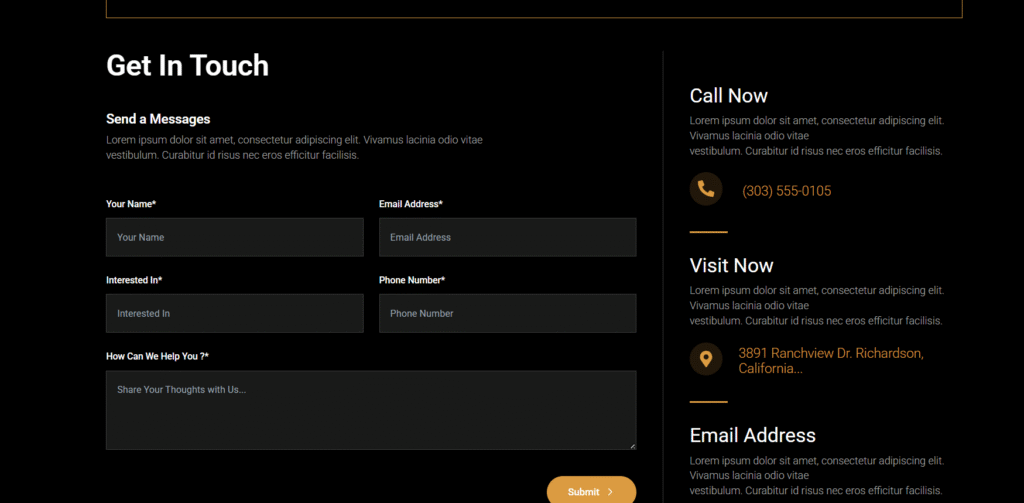
When integrated into a two-column layout alongside direct contact details (phone numbers, studio physical address, and direct email), the Goarch Contact Form produces a clean, high-contrast contact section:
Best Practices for Contact Sections:
- Test Form Submissions: Always send a test submission after setting up your Recipient Email to ensure server email functions are properly configured.
- Combine with Direct Contact Info: Place studio phone numbers (e.g.,
(303) 555-0105) and physical addresses (e.g.,3891 Ranchview Dr. Richardson, California...) next to the form to offer immediate alternative contact options for urgent client inquiries.