
How Can We Help?
Translate Theme With Loco Translate plugin
Translating your WordPress website allows you to localize text strings, dynamic labels, and theme elements into your preferred language without needing external editing software like Poedit.
This guide demonstrates how to translate both the Goarch Theme and the Goarch Core Plugin using the Loco Translate plugin directly within your WordPress dashboard.
Step 1: Install & Activate Loco Translate
- Log into your WordPress admin dashboard.
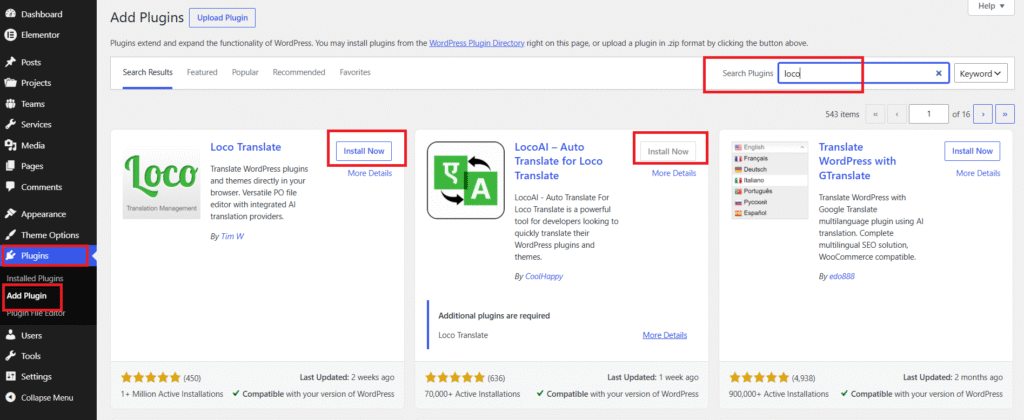
- Go to Plugins > Add Plugin in the left sidebar.
- In the search box at the top right, type loco.
- Locate Loco Translate (by Tim W) and click Install Now.
- (Optional) Install LocoAI – Auto Translate for Loco Translate if you wish to use automated AI translations.
- Activate both plugins upon installation.
Part 1: Translating Goarch Theme Strings
Step 2: Select the Goarch Theme
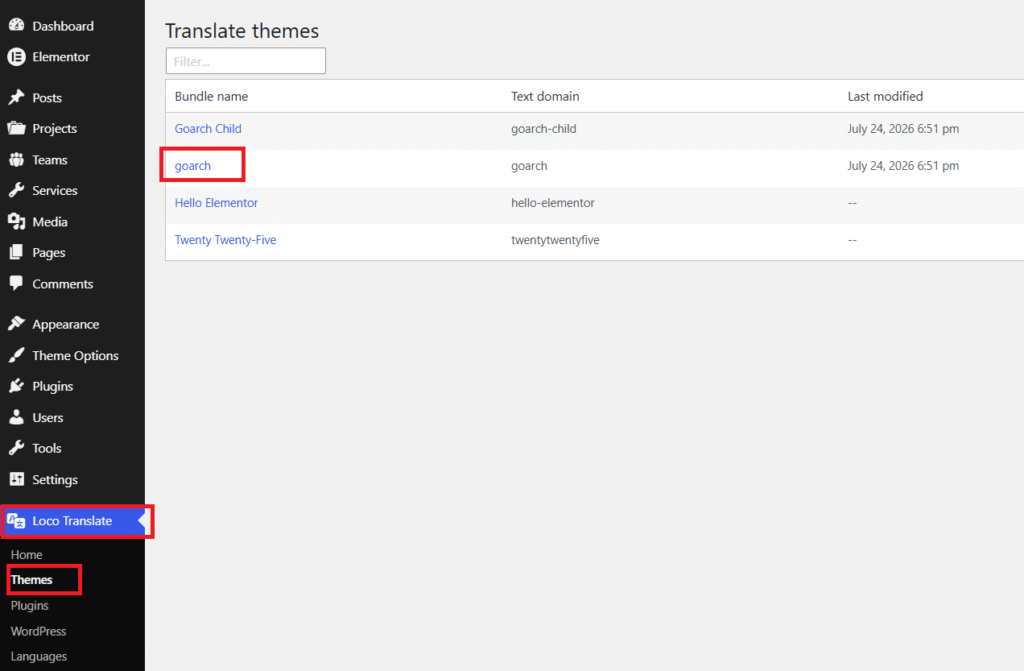
- Navigate to Loco Translate > Themes in the left sidebar menu.
- Find and click on goarch from the list of available theme bundles.
Step 3: Add a New Language
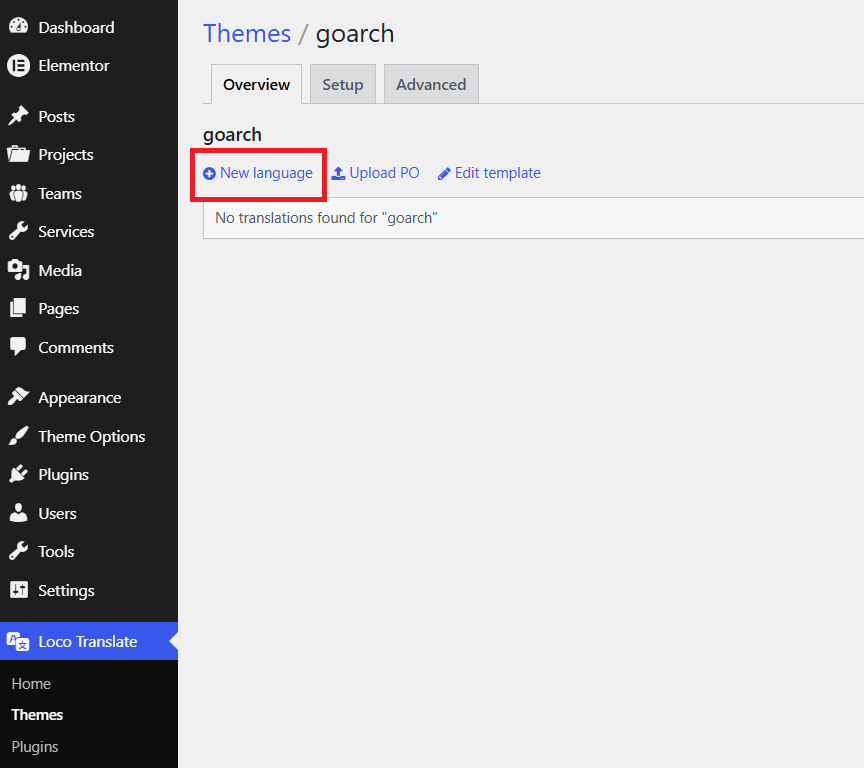
- On the Goarch theme overview page, click the + New language button.
Step 4: Configure Language & File Location
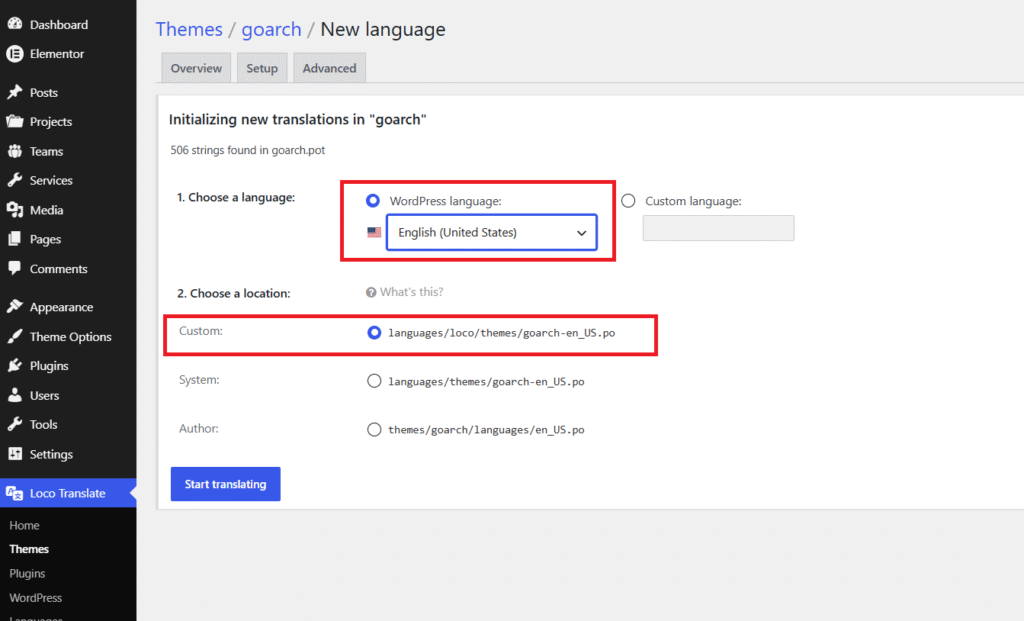
- Choose a language: Select your site’s target language from the WordPress language dropdown menu (e.g., English (United States), German, French, etc.).
- Choose a location: Select the Custom location option (
languages/loco/themes/goarch-en_US.po).Important Security Tip: Always save translation files in the Custom folder. Saving in the Author directory will result in your translations being completely overwritten and lost whenever the theme is updated. - Click the Start translating button.
Step 5: Translate Theme Text Strings
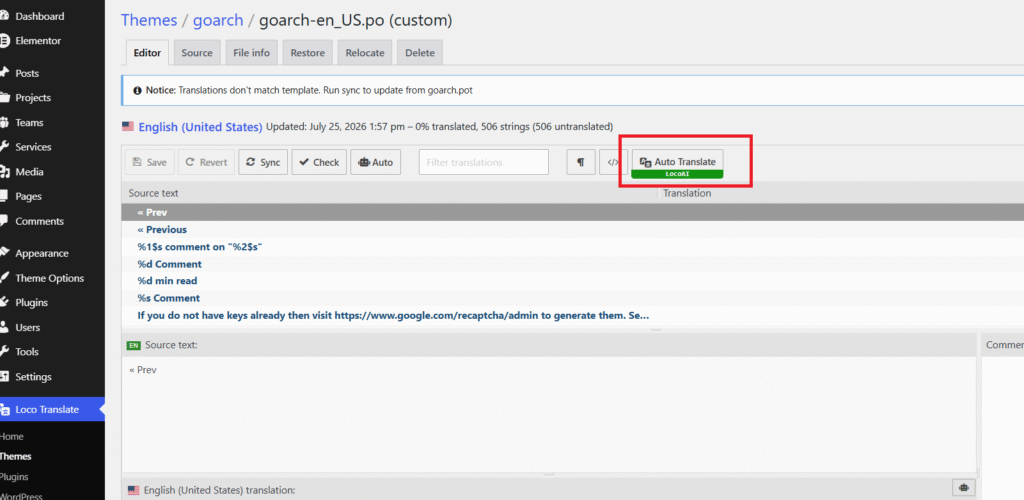
- Click on any text string from the Source text list to select it.
- Enter your custom translation in the translation box at the bottom.
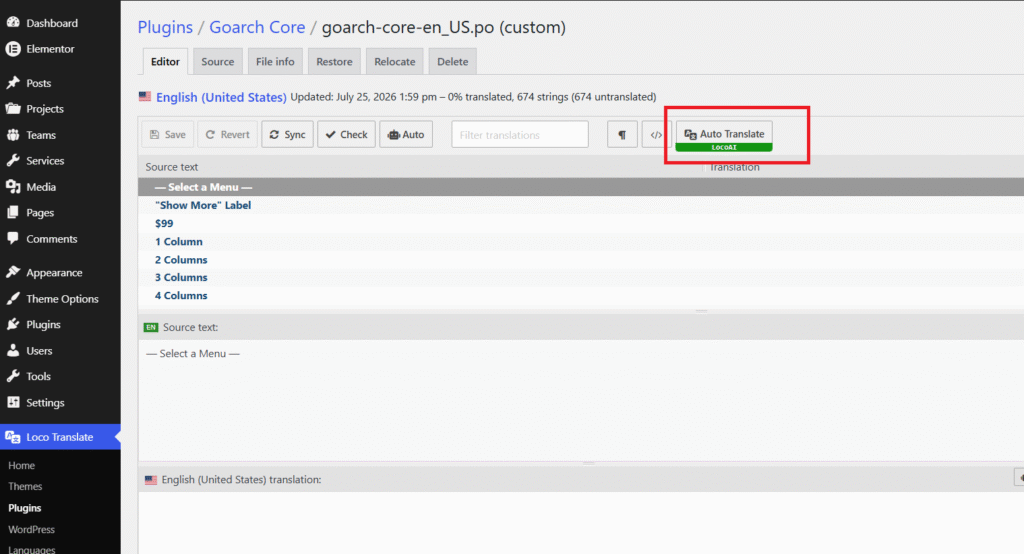
- Alternatively, click the Auto Translate (LocoAI) button at the top of the editor toolbar to automatically translate strings using AI.
- Click Save in the top toolbar to publish your changes.
Part 2: Translating Goarch Core Plugin Strings
Many theme labels, portfolio custom post types, shortcodes, and widget settings are built directly into the core theme plugin. You must translate the Goarch Core plugin to complete full site localization.
Step 6: Select the Goarch Core Plugin
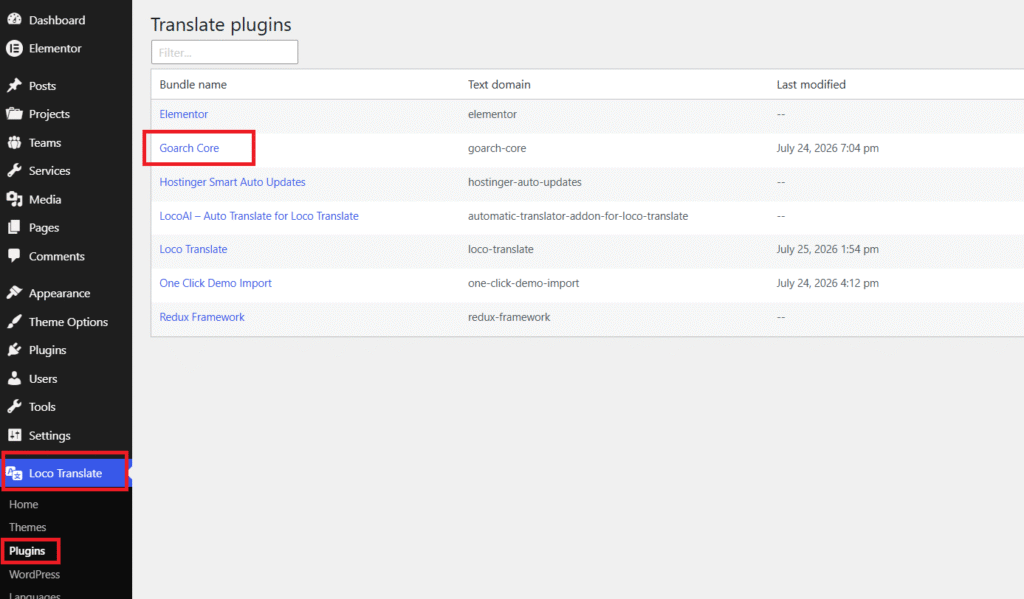
- Navigate to Loco Translate > Plugins in the left sidebar menu.
- Click on Goarch Core from the list of installed plugins.
Step 7: Add a New Language for the Core Plugin
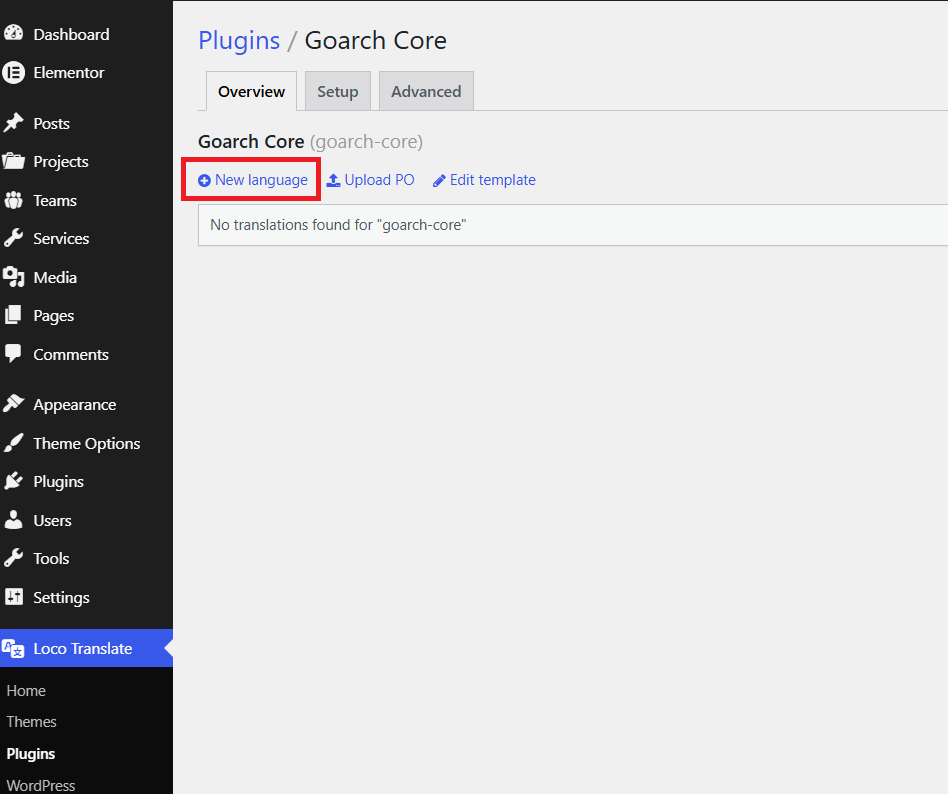
- On the Goarch Core overview screen, click + New language.
Step 8: Configure Language & Custom Location
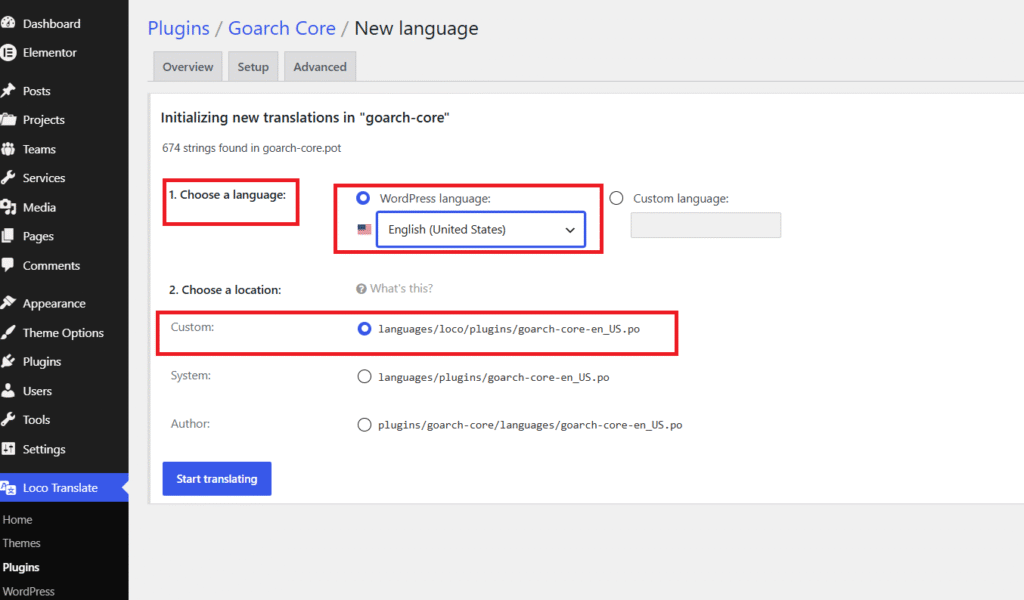
- Under Choose a language, select the same target language chosen for the theme.
- Under Choose a location, select Custom (
languages/loco/plugins/goarch-core-en_US.po). - Click Start translating.
Step 9: Translate Core Plugin Strings
- Select source strings (e.g.,
— Select a Menu —,"Show More" Label,1 Column,2 Columns, etc.). - Input your translation in the bottom translation box, or use Auto Translate (LocoAI) for automatic batch translation.
- Click Save to apply your changes to the site.
Translation Best Practices
| Action | Reason |
| Use Custom Location | Protects your .po and .mo language files from being deleted during automated theme/plugin updates. |
| Sync Theme Templates | Click the Sync button in the translation editor after updating Goarch to scan and load any newly added text strings. |
| Clear Site Cache | If translated words do not appear immediately on your frontend layout, clear your caching plugin and browser cache. |