
How Can We Help?
Projects
The Projects custom post type in the Goarch theme is a dedicated management hub built specifically to organize and showcase architectural portfolios, design case studies, and engineering projects. Operating independently from standard WordPress posts, this custom structure allows you to build a sophisticated design index sorted by specialized architectural fields, complete with multi-image gallery grid matrices layout options.
Feature Overview
- Isolated Content Stream: Keeps professional portfolio work cleanly separated from standard blog updates or editorial news streams.
- Demo 2 Multi-Image Grid Meta Matrix: Includes specialized lower layout blocks that combine a primary featured photo with dedicated secondary image nodes.
- Rich Architectural Taxonomy Structure: Categorize structural items seamlessly under complex design disciplines like Biophilic, Eco-Friendly, or Minimalist themes.
- Custom Media Covers for Taxonomies: Assign independent structural cover graphic assets to standalone category archives.
Step-by-Step Instructions
Follow these clear, step-by-step management actions to deploy, build, and organize portfolio items:
- Log in to your WordPress dashboard pane, navigate to the sidebar menu, and locate the custom Projects drawer.
- Click on Categories to pre-define the design disciplines, taxonomy filters, and portfolio index groups you will need.
- Select Add New Project to launch the editing block engine.
- Set up your main project title, body summary case study text, and map your relevant taxonomy tags using the sidebar controls.
- Scroll down to the bottom Meta Boxes canvas to attach multi-image assets for specialized presentation views.
- Click Publish to send the dynamic portfolio item live on your archive tracking lists.
Explanation of Settings
Projects Dashboard Overview
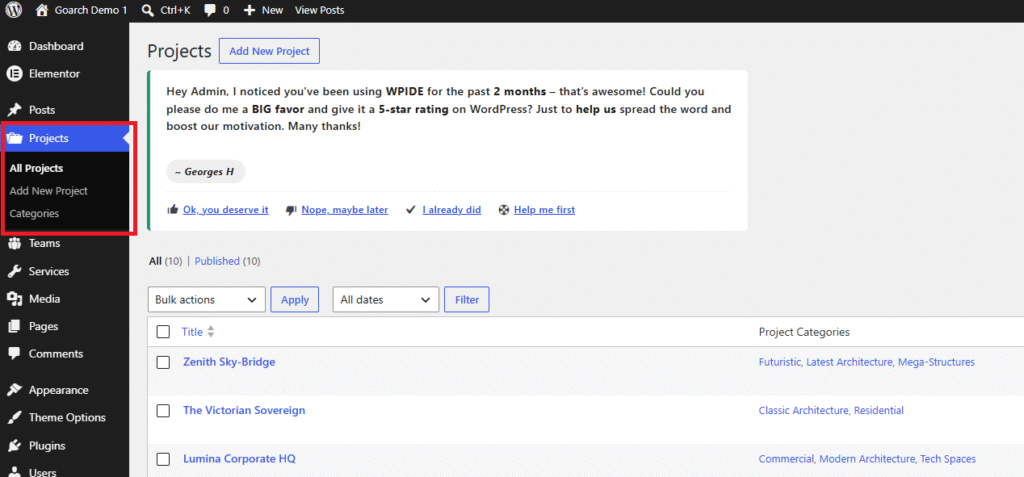
- All Projects: Opens the master index database displaying every draft and active architectural item. As shown in
image_2a91d8.png, this tracking area contains a total breakdown of 10 items. - Title & Category Grid Track: Displays your current item list (such as Zenith Sky-Bridge, The Victorian Sovereign, or Lumina Corporate HQ) alongside assigned multi-category tags so you can quickly monitor project categorization at a glance.
Add New Project Block Interface
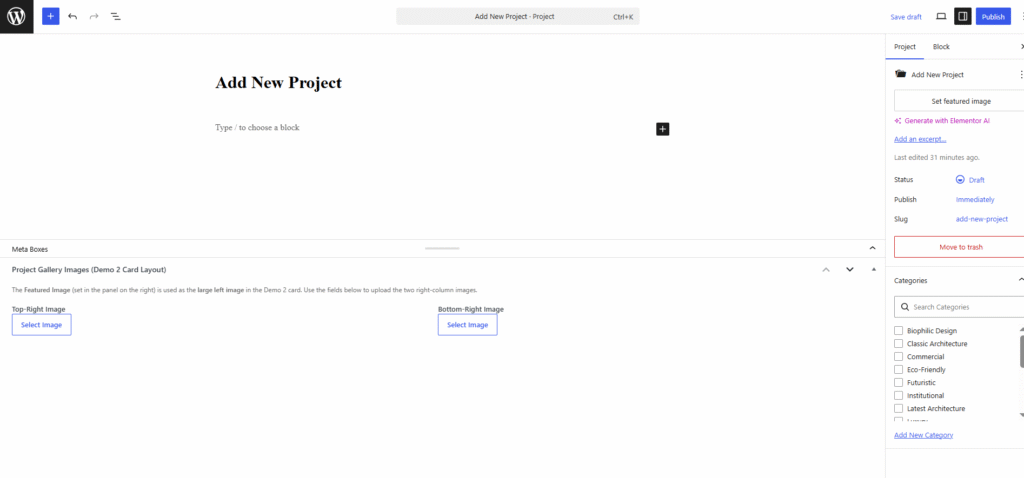
- Title Box: Enter the headline designation for your architectural showcase item.
- Categories Selector Sidebar: Toggle checking rules over relevant design disciplines (e.g., Biophilic Design, Classic Architecture, Commercial, Eco-Friendly) to hook the item up with active archive taxonomy displays.
- Set Featured Image: Assign the core cover graphic asset to represent the project inside standard grids and listings.
Meta Boxes -> Project Gallery Images (Demo 2 Card Layout)
This specialized lower panel configures advanced multi-image layout blocks, providing unique presentation fields used to break up single-image monotony.
- The Featured Image Role: The core featured graphic selected in your right-hand sidebar panel automatically dynamically assigns itself as the large left image anchor within the theme’s Demo 2 portfolio cards.
- Top-Right Image: Click the Select Image file link box to configure the upper stacked asset node accompanying the main left layout container.
- Bottom-Right Image: Click the Select Image action button to upload or specify the lower secondary stacked asset node to complete the three-part display card matrix.
Project Categories Screen
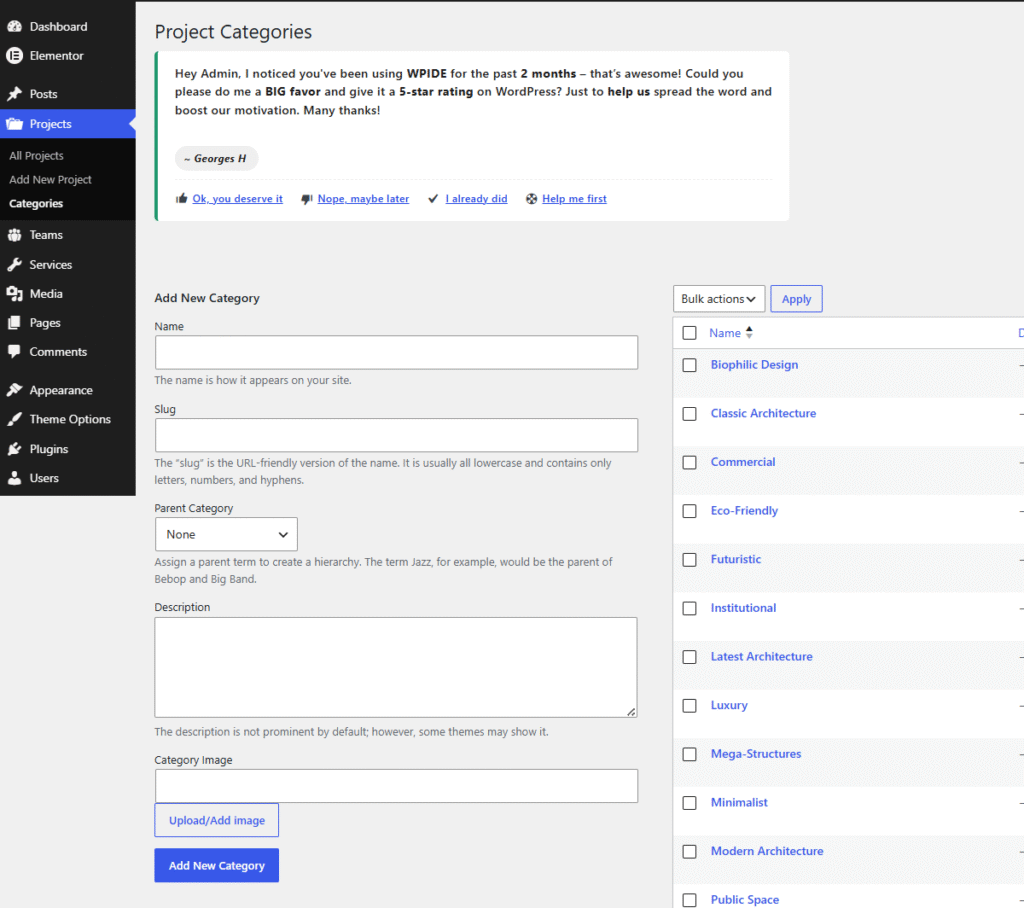
- Name: Enter the display title for your design discipline as it will appear across front-end portfolio filter links.
- Slug: Input the URL-friendly lowercase alternate configuration handle (e.g.,
modern-architectureorminimalist). - Parent Category: Establish hierarchical directory relationship paths to group secondary disciplines beneath primary categories.
- Description: Add informational context defining the category; while hidden by default in some configurations, specific template fields utilize this block to provide header definitions.
- Category Image: Use the Upload/Add image container to apply a distinct cover picture to act as a custom visual anchor background when showing individual category cards on index pages.
Tips & Best Practices
- Synchronize Image Aspect Ratios: For the best visual results with the Demo 2 Card Layout, make sure your multi-image uploads match the layout requirements. The Top-Right Image and Bottom-Right Image assets should share matching landscape dimensions so they stack evenly alongside your vertical, large-format Featured Image asset.
- Keep Slugs Clean and Uniform: When establishing portfolio taxonomy terms in the Project Categories area, always format your custom Slugs using lowercase alphanumeric strings and hyphens instead of spaces. Avoid special character formatting symbols to prevent broken search navigation loops or taxonomy index paths.
- Leverage Multi-Category Mapping: Architectural elements often fit into multiple design disciplines. You can check multiple categories—such as tagging a project with Futuristic, Latest Architecture, and Mega-Structures simultaneously—to make sure it appears across all relevant archive query loops on your front-end layout.
Troubleshooting
The layout breaks or skips graphics when using Demo 2 Card Layout
This issue usually means one of your secondary image spots is empty. Check the Project Gallery Images (Demo 2 Card Layout) panel under the main content box. The theme layout engine requires all three assets—the Featured Image, the Top-Right Image, and the Bottom-Right Image—to be populated to render the multi-image card layout correctly on the frontend.
Created categories do not appear on portfolio filter sections
Ensure your taxonomy category has active content assigned to it. If you create a brand new classification item using the Add New Category form, it will stay hidden from front-end page layouts until you successfully edit a project and assign it to that specific category term.