How Can We Help?
Blog
The GoArch theme provides a variety of customization options through the Goarch Theme Options panel. To access this:
- Go to Dashboard > Goarch Theme Options.
- You’ll see the Goarch Theme Options page where you can adjust settings for the blog archive layout, post display settings, and more.
Blog Archive Settings
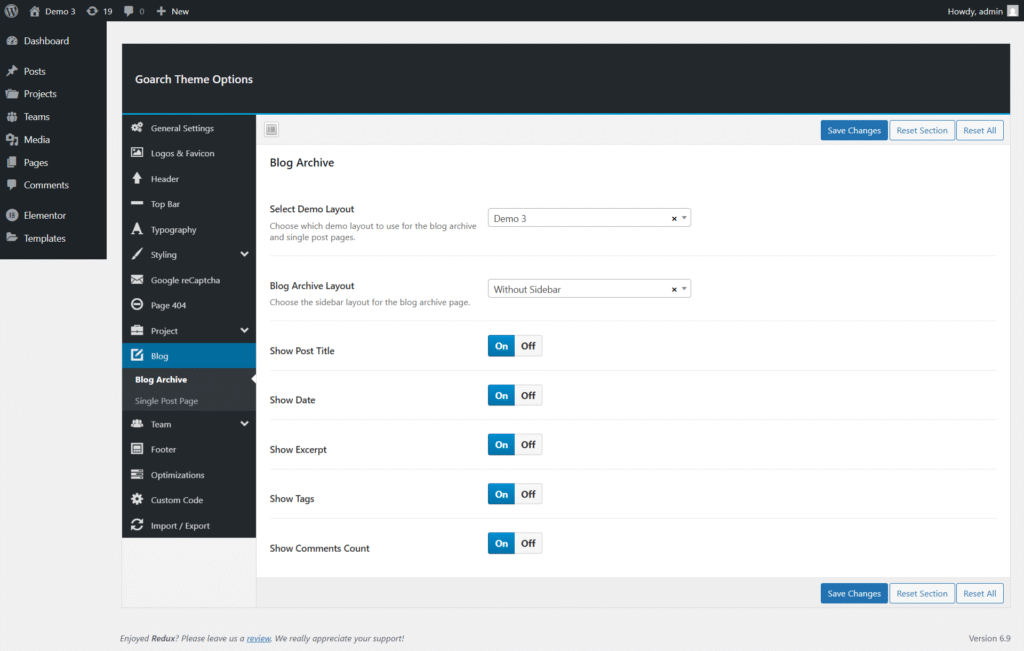
In the Blog Archive section, you can customize how the blog archive page appears.
1. Select Demo Layout
- Choose which demo layout to use for the blog archive and single post pages.
- Example: Select “Demo 3” from the dropdown.
2. Blog Archive Layout
- Choose the sidebar layout for the blog archive page.
- You can select the following options:
- Without Sidebar
- With Sidebar (if available in your theme)
3. Show Post Title
- Toggle the visibility of the post title on the blog archive page.
- On / Off: Turn it on or off based on your preference.
4. Show Date
- Display the post’s publication date.
- On / Off: Enable or disable the date display.
5. Show Excerpt
- Enable or disable the display of the post excerpt in the blog archive.
- On / Off: Choose whether to show a brief excerpt of each post.
6. Show Tags
- Show or hide tags associated with blog posts.
- On / Off: Customize whether tags are visible on the blog archive page.
7. Show Comments Count
- Enable or disable the comments count next to each post.
- On / Off: Choose to show the number of comments on each post.
Single Post Page Settings
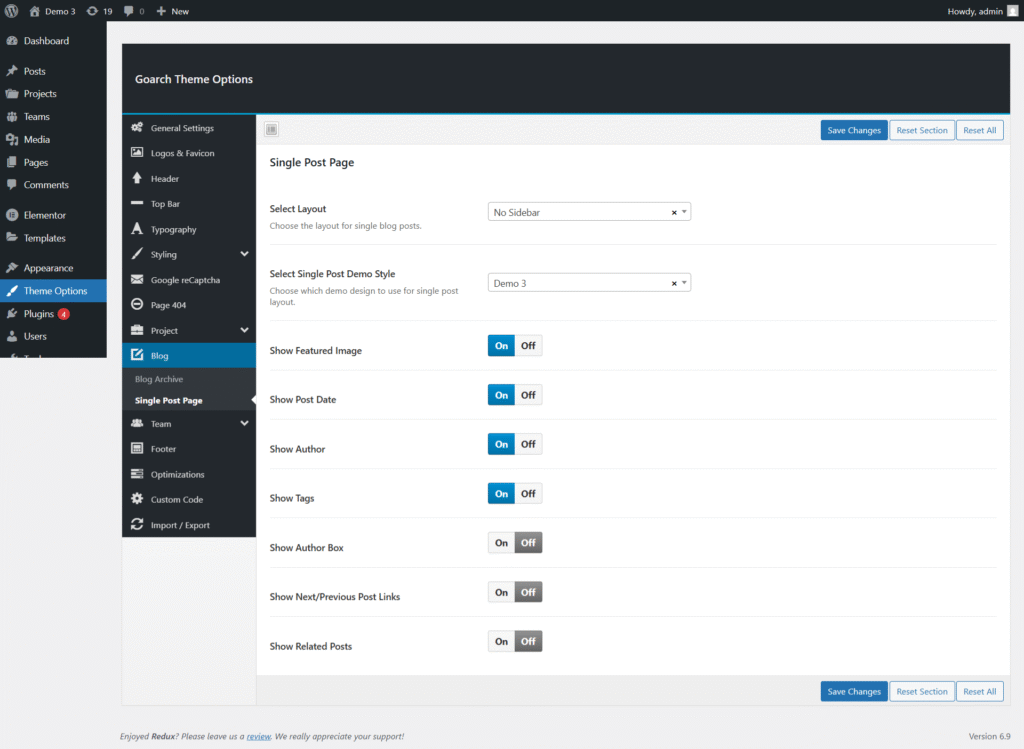
The Single Post Page settings in the GoArch theme allow you to control the layout and visibility of elements on individual blog posts. These options help you customize how your blog content is presented to visitors without writing any code.
You can access these settings from:
WordPress Dashboard → Theme Options → Blog → Single Post Page
Single Post Page Options
1. Select Layout
Choose the overall layout for your single blog posts.
Available options:
- Right Sidebar – Displays a sidebar on the right side of the post content.
- Left Sidebar – Displays a sidebar on the left side of the post content.
- No Sidebar – Displays the post content in full width without any sidebar.
Use No Sidebar for a clean, distraction-free reading experience, or choose a sidebar layout if you want to show widgets such as recent posts, categories, or ads.
2. Select Single Post Demo Style
This option allows you to select a predefined design style for single blog posts.
- Choose the demo style that best matches your site’s overall design.
- Demo styles may differ in spacing, typography, and element arrangement.
Note: Available demo styles depend on the demo content imported with the theme.
Post Element Visibility Options
These toggle options let you show or hide specific elements on single blog posts.
3. Show Featured Image
- On – Displays the featured image at the top of the post.
- Off – Hides the featured image.
4. Show Post Date
- On – Displays the published date of the post.
- Off – Hides the post date.
5. Show Author
- On – Displays the post author name.
- Off – Hides the author name.
6. Show Tags
- On – Displays post tags at the bottom of the post.
- Off – Hides post tags.
7. Show Author Box
- On – Displays an author bio box below the post content.
- Off – Hides the author box.
The author box usually includes the author’s name, avatar, and description.
8. Show Next / Previous Post Links
- On – Displays navigation links to the previous and next blog posts.
- Off – Hides post navigation.
This feature helps improve user engagement by encouraging readers to explore more content.
9. Show Related Posts
- On – Displays related posts based on categories or tags.
- Off – Hides related posts.
Related posts are useful for increasing page views and keeping visitors on your site longer.