
How Can We Help?
Advanced Typography settings
The Goarch theme provides centralized typography controls through the Redux Theme Options panel. This allows you to customize Google Fonts, font sizes, line heights, text transforms, and letter spacing across your entire website without writing custom CSS code.
Accessing Typography Options
To access the global font settings:
- Log in to your WordPress admin dashboard.
- Navigate to Theme Options in the left sidebar menu (or Appearance > Theme Options).
- Click on the Typography tab.
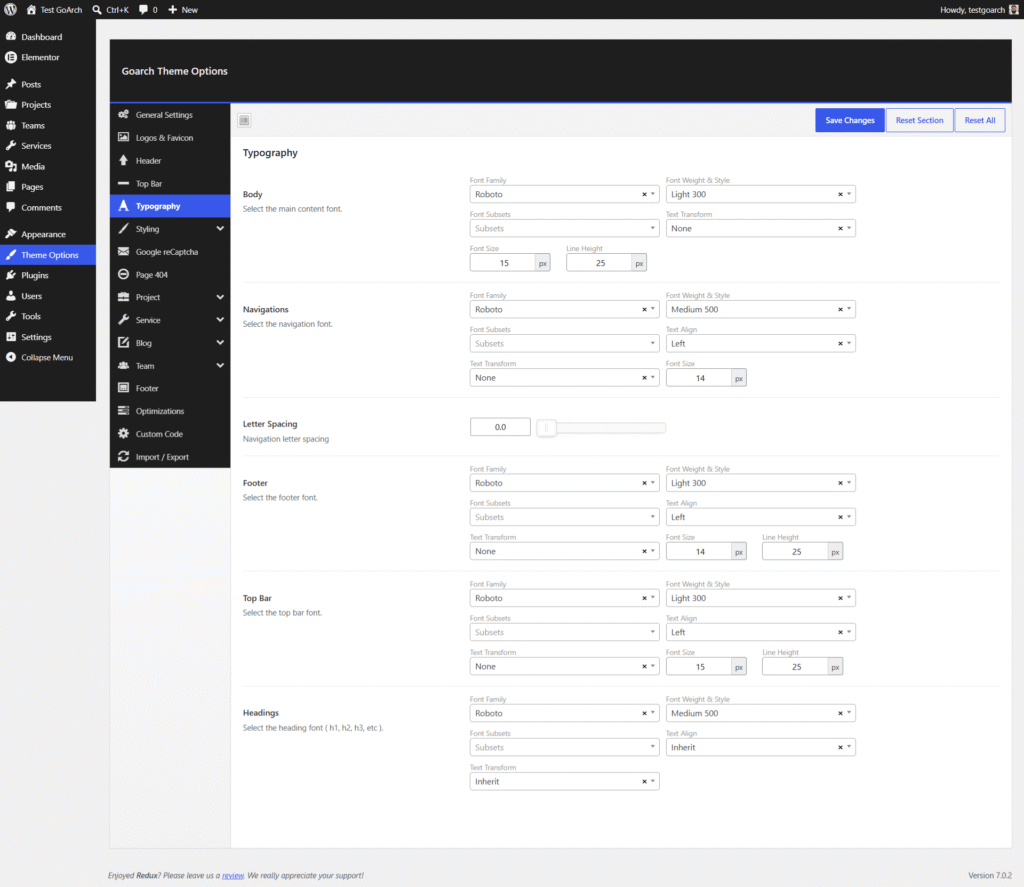
Typography Settings Breakdown
The Typography panel is divided into distinct sections targeting specific areas of your architectural website:
1. Body Text
Controls the default typography for paragraphs and primary body content across all pages and blog posts.
- Font Family: Select your preferred primary body font (e.g., Roboto).
- Font Weight & Style: Choose font weight options (e.g., Light 300, Regular 400, Bold 700).
- Font Subsets: Load specific character subsets (e.g., Latin, Cyrillic, Greek) if required by your site’s language.
- Text Transform: Set global capitalization rules (None, Capitalize, UPPERCASE, or lowercase).
- Font Size & Line Height: Set explicit pixel values for body text size (default:
15px) and vertical spacing/line height (default:25px).
2. Navigations & Letter Spacing
Customizes the appearance of primary header navigation menus.
- Font Family & Style: Define the font family and weight used for menu links.
- Text Align & Transform: Align navigation items and set capitalization styles.
- Font Size: Set the font size in pixels (default:
14px). - Letter Spacing: Adjust character tracking for navigation links using the interactive slider or numerical input box (default:
0.0).
3. Footer
Configures font styling specifically for footer widget areas, text blocks, and copyright sections.
- Includes controls for Font Family, Font Weight & Style, Subsets, Text Align, Text Transform, Font Size, and Line Height.
4. Top Bar
Manages typography for the top bar header strip (commonly used for contact phone numbers, email addresses, or social links).
- Includes controls for Font Family, Font Weight & Style, Text Align, Text Transform, Font Size (default:
15px), and Line Height (default:25px).
5. Headings
Applies global font rules across all standard HTML heading tags . Like H1, H2, and etc…
- Font Family & Style: Choose a distinctive heading font family to establish visual hierarchy.
- Text Align & Transform: Choose whether headings inherit parent alignments or enforce specific text transformations (e.g., UPPERCASE for modern architectural aesthetics).
Managing Theme Options Changes
At the top right and bottom of the panel, you will find three primary control buttons:
- Save Changes: Commits your typography adjustments to the live website.
- Reset Section: Reverts only the Typography section back to the theme’s default settings without affecting other panels.
- Reset All: Restores all Goarch Theme Options tabs (General, Header, Styling, Footer, etc.) back to factory default values.
Best Practices for Architectural Web Typography
- Maintain Readability: For body text, keep line heights proportional to font size (typically
1.5to1.6times the font size, such as15pxfont with25pxline height). - Limit Font Families: Use no more than two distinct font families (e.g., one for headings and one for body content) to keep page load times fast and preserve site performance.
- Test Responsiveness: After saving new typography sizes, review your site on mobile devices to ensure headings and navigation links scale properly without breaking layout containers.