How Can We Help?
Custom Code
Custom Code Settings
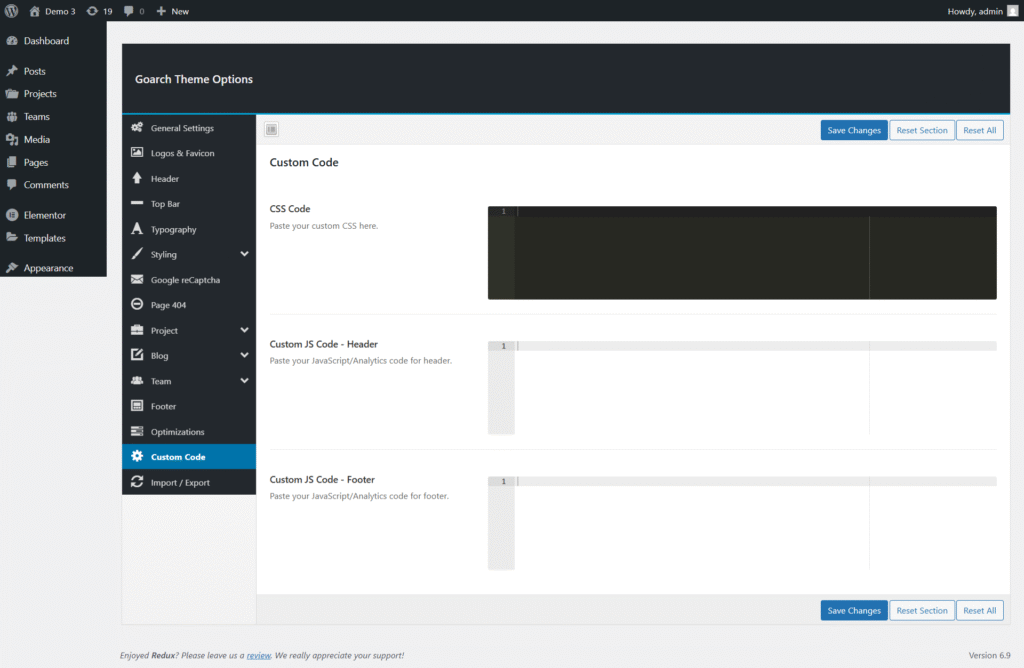
The Custom Code section in the GoArch Theme Options allows you to safely add your own CSS and JavaScript without modifying core theme files. This ensures your customizations remain intact during theme updates.
You can find this section by navigating to:
WordPress Dashboard → Appearance → GoArch Theme Options → Custom Code
Overview
The Custom Code panel includes three main areas:
- Custom CSS Code
- Custom JS Code – Header
- Custom JS Code – Footer
Each field serves a specific purpose and is applied automatically by the theme when saved.
1. Custom CSS Code
Location:GoArch Theme Options → Custom Code → CSS Code
Description:
This field allows you to add custom CSS styles to modify the appearance of your website.
Typical Use Cases:
- Change colors, fonts, or spacing
- Adjust layout issues
- Override default theme styles
- Customize specific elements without editing theme files
Example:
.site-header {
    background-color: #111111;
}

.section-title {
    font-size: 36px;
    letter-spacing: 2px;
}
Notes:
- CSS added here is applied globally across the site.
- You do not need
<style>tags. - Changes take effect immediately after saving.
2. Custom JS Code – Header
Location:GoArch Theme Options → Custom Code → Custom JS Code - Header
Description:
This field is used to insert JavaScript or analytics scripts into the <head> section of your website.
Recommended For:
- Google Analytics
- Google Tag Manager (head script)
- Meta verification scripts
- Tracking pixels that require early loading
Example:
<script>
  console.log('Header script loaded');
</script>
Notes:
- Scripts added here load before page content.
- Use only trusted scripts to avoid performance or security issues.
- Do not include
<head>tags—only the script itself.
3. Custom JS Code – Footer
Location:GoArch Theme Options → Custom Code → Custom JS Code - Footer
Description:
This field inserts JavaScript just before the closing </body> tag.
Recommended For:
- Custom interactive scripts
- jQuery-based functionality
- Performance-friendly JavaScript
- Event tracking scripts
Example:
<script>
  document.addEventListener('DOMContentLoaded', function () {
      console.log('Footer script loaded');
  });
</script>
Notes:
- Footer scripts improve page loading performance.
- Ideal for scripts that do not need to load immediately.
- Avoid duplicate scripts already loaded by plugins.