How Can We Help?
Project
Project Archive Settings (GoArch Theme)
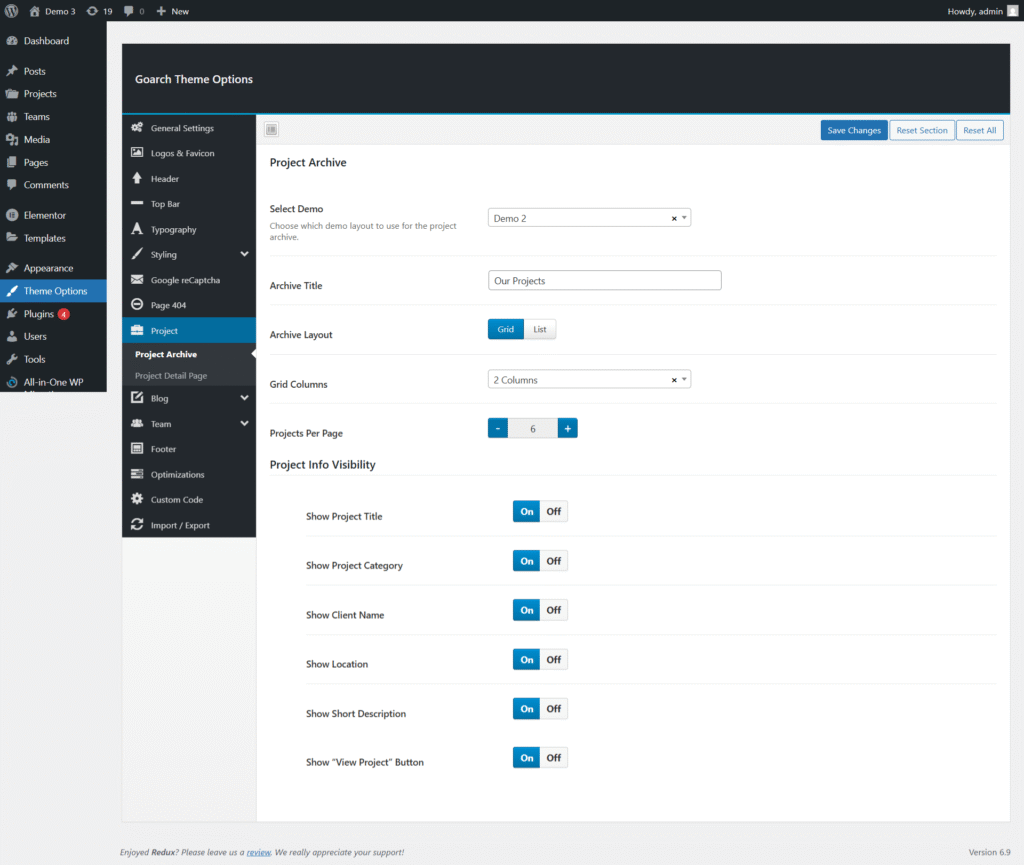
The Project Archive settings in the GoArch theme allow you to control how your project listing page looks and behaves. This section is ideal for customizing the portfolio or projects archive page where all projects are displayed.
You can access these settings from:
WordPress Dashboard → GoArch Theme Options → Project → Project Archive
Project Archive Overview
The Project Archive page displays all projects in a structured layout. GoArch provides flexible controls for layout, content visibility, and pagination to help you present your work professionally.
Available Settings
1. Select Demo
Option: Select Demo
Example: Demo 2
- Choose which predefined demo layout to use for the project archive page.
- Each demo offers a unique visual style and structure.
- Useful when switching between different design presets without rebuilding the page.
2. Archive Title
Option: Archive Title
Example: Our Projects
- Sets the main heading displayed at the top of the project archive page.
- Helps visitors immediately understand the page content.
Tip: Use a clear and descriptive title such as Our Work, Portfolio, or Projects.
3. Archive Layout
Option: Archive Layout
Choices: Grid | List
- Grid: Displays projects in a multi-column layout with thumbnails.
- List: Displays projects in a vertical list format.
Choose the layout that best fits your design and content style.
4. Grid Columns
Option: Grid Columns
Example: 2 Columns
- Defines the number of columns used when the Grid layout is selected.
- Fewer columns create larger project cards, while more columns show more projects at once.
5. Projects Per Page
Option: Projects Per Page
Example: 6
- Controls how many projects are displayed on each archive page.
- Pagination will automatically apply if the number of projects exceeds this value.
Project Info Visibility
This section allows you to toggle individual project elements on or off in the archive listing.
Available Toggles
- Show Project Title – Displays the project name
- Show Project Category – Displays assigned project categories
- Show Client Name – Displays the client associated with the project
- Show Location – Displays the project location
- Show Short Description – Displays a brief project summary
- Show “View Project” Button – Displays a call-to-action button linking to the project detail page
Each option can be enabled (On) or disabled (Off) depending on your design needs.
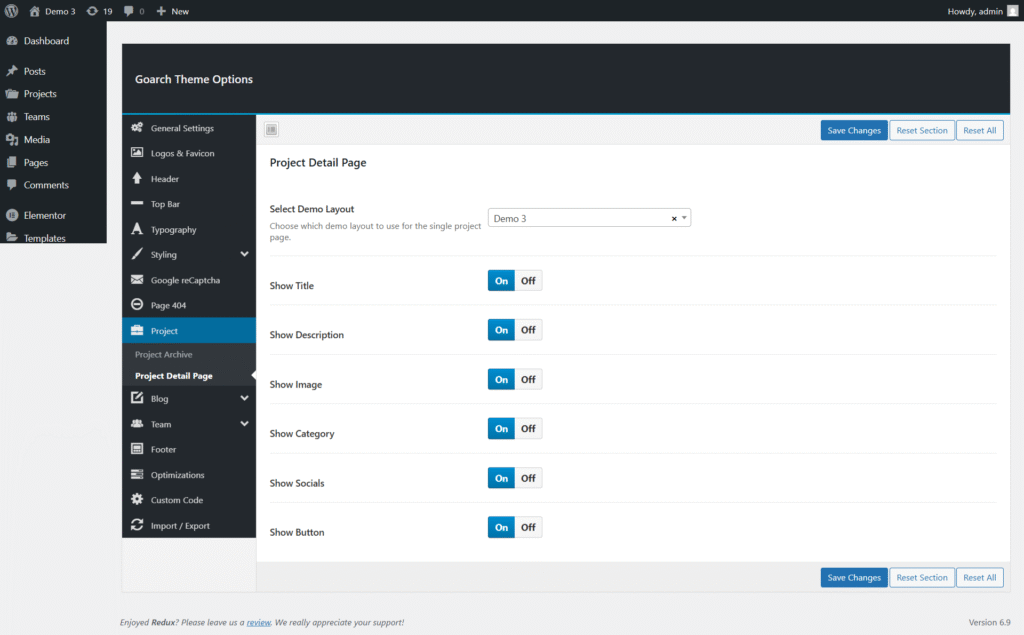
Project Detail Page Settings (GoArch Theme)
The Project Detail Page settings in the GoArch theme allow you to control the layout and visibility of elements on individual project pages. These options help you present each project with the right balance of content, visuals, and supporting information.
You can access these settings from:
WordPress Dashboard → GoArch Theme Options → Project → Project Detail Page
Project Detail Page Overview
Each project in GoArch has its own single project page. Using the options in this section, you can select a predefined demo layout and toggle specific content elements on or off to match your design requirements.
Available Settings
1. Select Demo Layout
Option: Select Demo Layout
Example: Demo 3
- Choose which demo layout is used for the single project page.
- Each demo provides a unique arrangement of images, content, and meta information.
- Changing the demo layout updates all project detail pages globally.
2. Show Title
Option: Show Title (On / Off)
- Enables or disables the project title on the detail page.
- Turn this off if the title is already displayed elsewhere in the layout.
3. Show Description
Option: Show Description (On / Off)
- Controls the visibility of the main project description.
- This content is typically pulled from the project editor.
4. Show Image
Option: Show Image (On / Off)
- Toggles the featured image or project gallery on the detail page.
- Recommended to keep enabled for visual impact.
5. Show Category
Option: Show Category (On / Off)
- Displays the project’s assigned category or categories.
- Helps visitors understand the project type or classification.
6. Show Socials
Option: Show Socials (On / Off)
- Enables social sharing icons on the project detail page.
- Allows visitors to share projects on social media platforms.
7. Show Button
Option: Show Button (On / Off)
- Controls the visibility of the project action button (e.g., View Project, Visit Site, or custom link).
- Useful for linking to external project URLs or case studies.