
How Can We Help?
Adding menu to the site
The Goarch Navigation & Footer Configuration panels provide site administrators with a centralized control suite to handle header navigation architectures, manage menu locations, and structure multi-column global footers. By linking core WordPress menu components directly with theme-specific display settings, you can deploy synchronized navigation hierarchies, list physical corporate office addresses, and manage contextual links across every page layout.
Feature Overview
- Unified Navigation Architecture: Manage global link routing tracks from a single dashboard canvas using native WordPress page, project, service, and custom taxonomies.
- Granular Footer Meta Optimization: Input localized contact markers, including physical address nodes, direct phone links, corporate emails, and customized copyright stamps.
- Flexible 5-Zone Menu Mapping: Route unique menu tracks dynamically across five explicit theme locations, including split header menus (
Left Menu/Right Menu) and stacked footer columns. - Targeted Visibility Toggles: Control structural grid outputs directly from the backend, switching secondary footer lists on or off to balance layout densities seamlessly.
Step-by-Step Instructions
Follow these management actions to organize your site’s navigation pathways and configure your corporate footer section:
- Log in to your administrative dashboard, navigate to Appearance, and click open the Menus workspace.
- Select an existing menu from the dropdown checklist, or use the create a new menu link to map out a secondary link structure.
- Check target components from your left-hand accordion options (such as core Pages, custom Projects, or specific Categories) and choose Add to Menu to drag them into position.
- Move down to Theme Options in your sidebar array and click into the dedicated Footer panel canvas.
- Choose your global layout variation template, upload your brand logo asset, and populate the contact metadata text boxes completely.
- Toggle the targeted layout visibility flags to On to prepare your custom footer link tracks.
- Return to the Menus panel, open the Manage Locations tab, map your menu titles to their specific target display zones, and select Save Changes.
Explanation of Settings
Edit Menus Screen
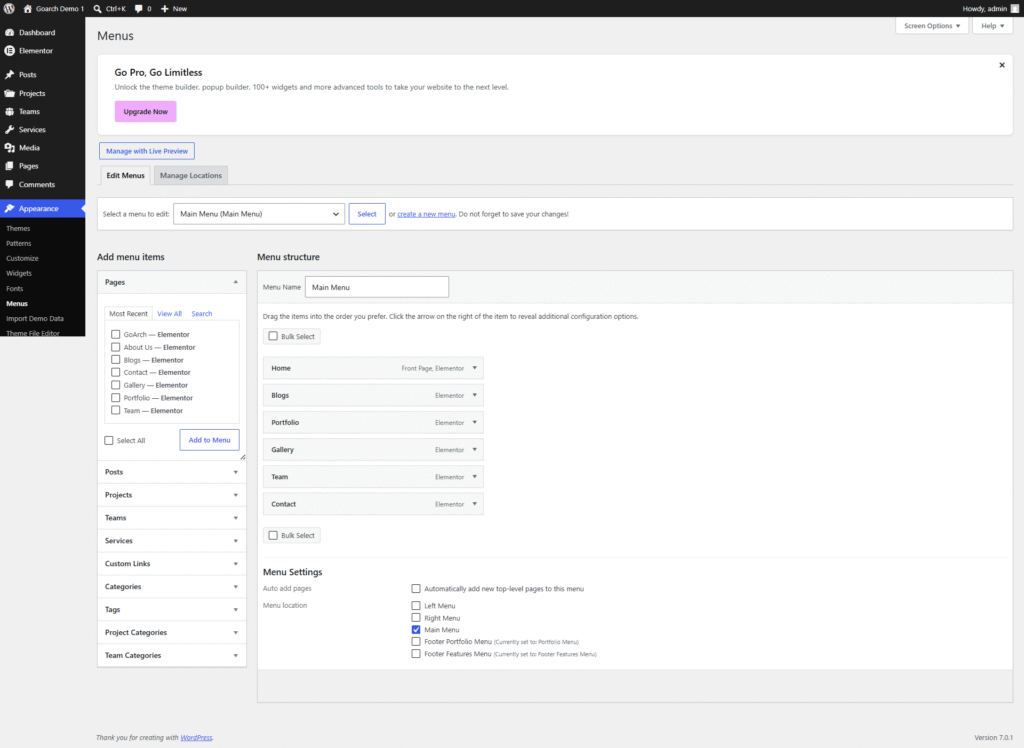
- Select a menu to edit: Use this primary dropdown selector to isolate individual navigation configurations. As illustrated in this area is focused on the Main Menu.
- Add menu items Panel: Select and deploy content targets dynamically. In addition to standard WordPress pages, posts, and category archives, Goarch exposes deep integration accordions for your custom post profiles, including Projects, Teams, Services, Project Categories, and Team Categories.
- Menu structure Canvas: Arrange structural page nodes using simple drag-and-drop actions. Items like Home, Blogs, Portfolio, Gallery, Team, and Contact can be reordered or nested as sub-menus by indenting them.
- Menu Settings Location Flags: Hardwire the active menu tree directly to functional site zones by checking the corresponding assignment box (configured explicitly to Main Menu in the sample layout).
Goarch Theme Options -> Footer Panel
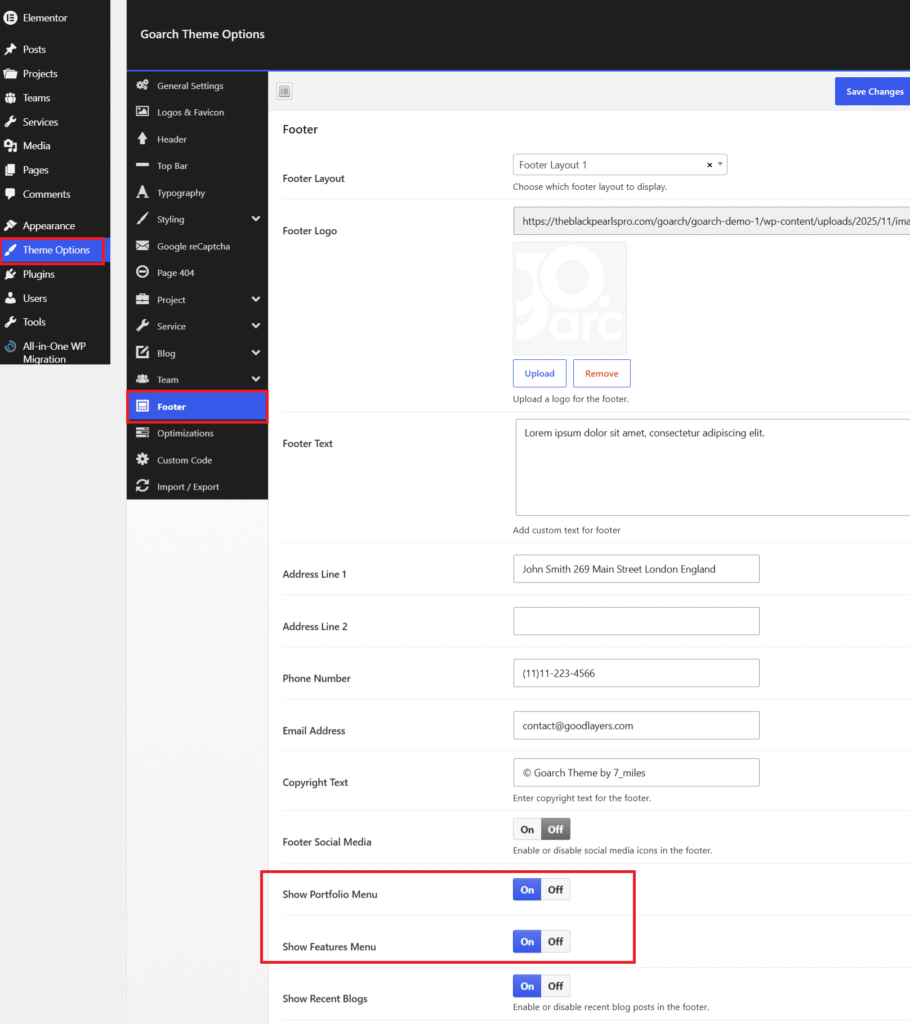
- Footer Layout: Choose your presentation template framework. In this is locked to Footer Layout 1.
- Footer Logo: Click Upload to specify the secondary monochrome or colored identity graphic deployed over background containers.
- Footer Text: Enter a brief brand summary blurb or company description inside the text container area.
- Corporate Meta Blocks (Address Line 1 / Phone Number / Email Address): Populate your primary contact information fields (e.g., setting the address to John Smith 269 Main Street London England, Phone to (11)11-223-4566, and Email to contact@goodlayers.com).
- Copyright Text: Set the legal text string displayed along the bottom floor margin (e.g., © Goarch Theme by 7_miles).
- Show Portfolio Menu / Show Features Menu / Show Recent Blogs: Operational visibility switches. Flipping these toggles to On injects dedicated dynamic list columns automatically right beside your main corporate text sections.
Menus -> Manage Locations Workspace
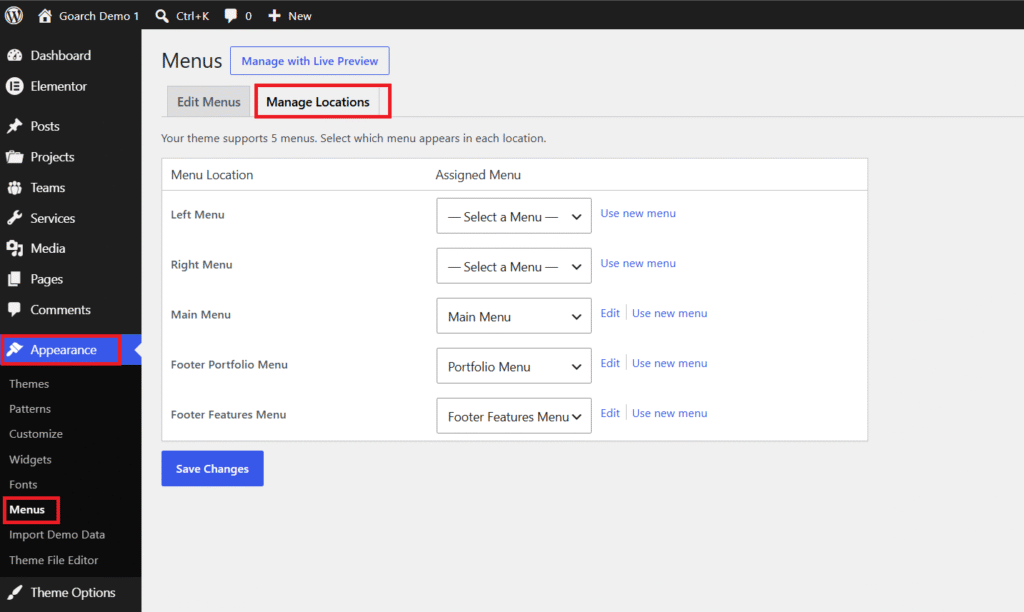
This screen manages structural routing rules, defining exactly where your customized menu assets render on the live site.
- Left Menu / Right Menu: Map unique navigation paths here if your site layout uses a split-header configuration wrapping around a centered brand logo.
- Main Menu Zone: Assign the principal multi-level navigation tree used for standard top-header row blocks (configured to use the primary Main Menu asset).
- Footer Portfolio Menu / Footer Features Menu: Connect specific secondary menu structures to your footer columns. As shown in the image these roles are explicitly mapped to Portfolio Menu and Footer Features Menu respectively to match the visibility switches enabled in your Theme Options panel.
Tips & Best Practices
- Synchronize Toggles with Menu Assignments: If you set Show Portfolio Menu or Show Features Menu to On inside your Theme Options layout block, you must also make sure a menu is assigned to those slots in the Manage Locations tab. If you toggle the section to visible but leave the assigned location mapping empty, the layout engine will render an empty column space on the frontend.
- Keep Navigation Titles Concise: To avoid causing your header layout to break or wrap awkwardly to a second line on laptop or tablet views, use short, punchy navigation labels (like Blogs, Team, or Contact) inside your Menu structure tree rather than long, wordy page titles.
- Format Phone Numbers for Click-to-Call: When populating your contact details in the Phone Number field, use clean, standardized international formatting strings to make sure web browsers can index the node correctly and enable tap-to-call actions smoothly on mobile devices.
Troubleshooting
Footer links or recent blog updates are completely missing from the live site
This usually indicates an option conflict between your global visibility settings and menu locations. First, check your Goarch Theme Options > Footer configuration drawer and confirm that Show Portfolio Menu and Show Features Menu are switched to On. Once verified, navigate to the Manage Locations menu screen and ensure actual menu groupings are selected in those dropdown slots instead of left unassigned.
Structural link updates are not showing up in the primary header row
This issue happens when you make changes to a menu tree that is not actively mapped to your current theme view layer. Review your active Edit Menus dashboard tab and check the Select a menu to edit dropdown box. Confirm you are modifying the exact link collection that handles live site traffic (in this setup, the item specified as your primary Main Menu mapping).