
How Can We Help?
GoARch Section Title
The Goarch Section Title widget is a lightweight, clean Elementor element engineered to create consistent headings across your real estate and architectural design pages. It allows you to quickly deploy uniform title-and-subtitle combinations and control their alignments, responsive margins, and font treatments directly within the page builder layout.
Feature Overview
- Combined Text Architecture: Build structured section layouts using a unified module containing both primary title and subtitle fields.
- Granular Margin Controls: Manage independent margins for the primary title, secondary subtitle, and the overall widget container block.
- Responsive Layout Alignment: Instantly shift your text layout position between left, center, or right alignments tailored per viewport device.
Step-by-Step Instructions
Follow these clear, actionable steps to insert and define a Goarch Section Title component:
- Open your designated page with the Elementor editor panel active.
- Search for Goarch Section Title in the elements panel located on the left.
- Drag the widget and drop it cleanly at the top of your layout section or content column.
- Input your custom messaging text blocks within the Content tab.
- Move to the Style tab to fine-tune alignments, brand color profiles, typography scales, and structural spacings.
Explanation of Settings
Content Tab
The Content tab provides input fields to capture the text parameters intended for your section block headers.
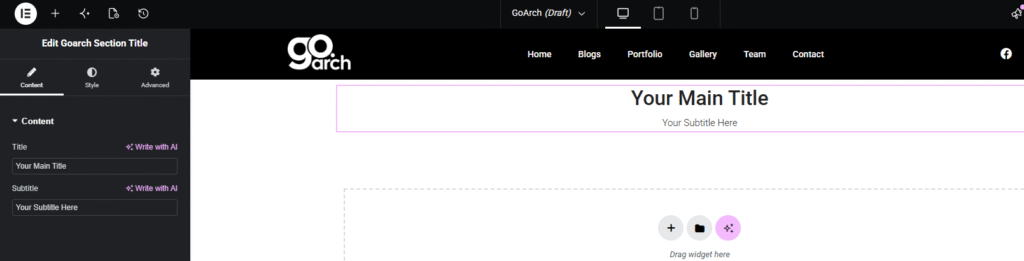
- Title: Enter your main heading statement text directly within this input field.
- Subtitle: Enter a supporting secondary descriptor text line to render below or above your main heading.
Style Tab
The Style tab houses aesthetic treatments grouped into structural sections covering alignment, typographic branding, and margin adjustments.
Alignment
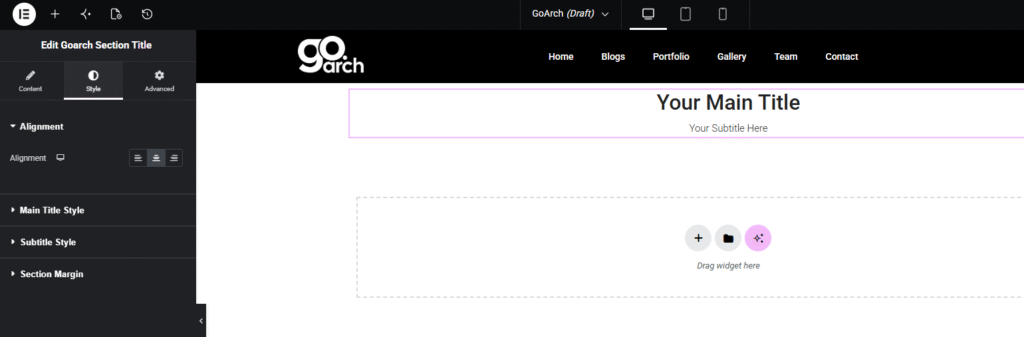
- Alignment: Define the structural positioning of both your Title and Subtitle blocks simultaneously. You can select between Left, Center, or Right alignments using the responsive layout icons.
Main Title Style
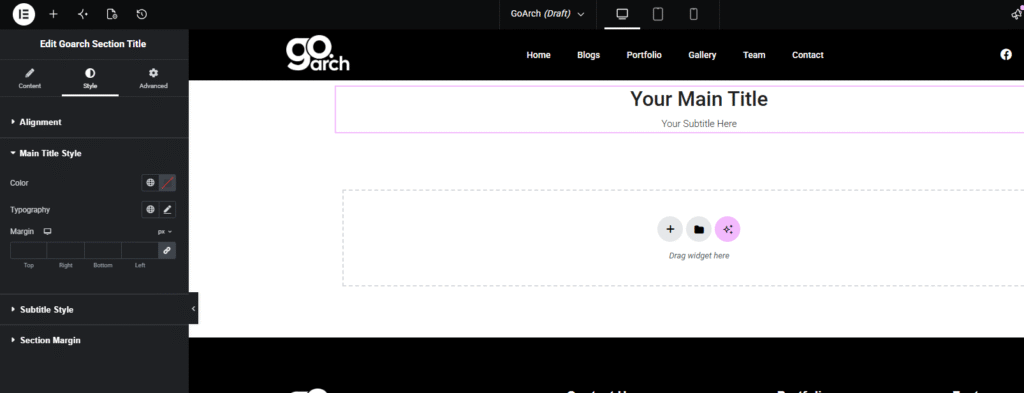
- Color: Choose a design-compliant global system color or apply a custom hex value to target your main title text.
- Typography: Activate the typography configurations (font family selection, sizing weight, line height thresholds, and spacing variants).
- Margin: Set localized outer margins specifically for the main title text string. Unlink the values to adjust individual parameters for Top, Right, Bottom, or Left spacing independently.
Subtitle Style
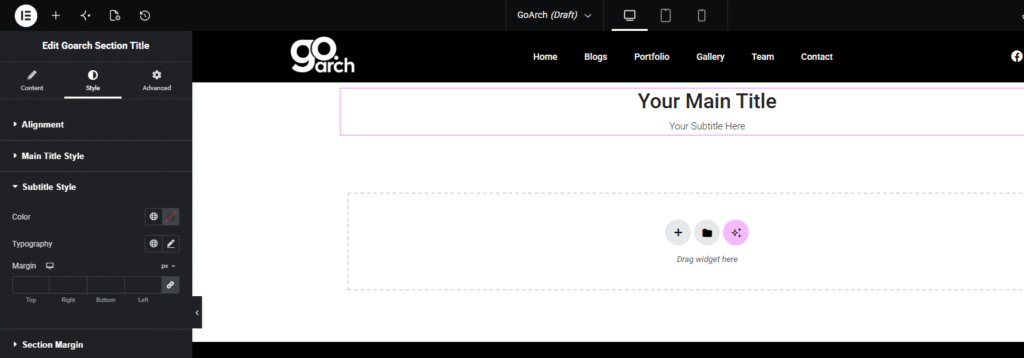
- Color: Define the custom hex color values applied directly to your subtitle text layer.
- Typography: Adjust complete font settings (font family style, sizing weights, case modifications) to establish proper visual hierarchy.
- Margin: Configure independent margins for the subtitle element wrapper to perfectly separate it from the main heading or neighboring text layouts.
Section Margin
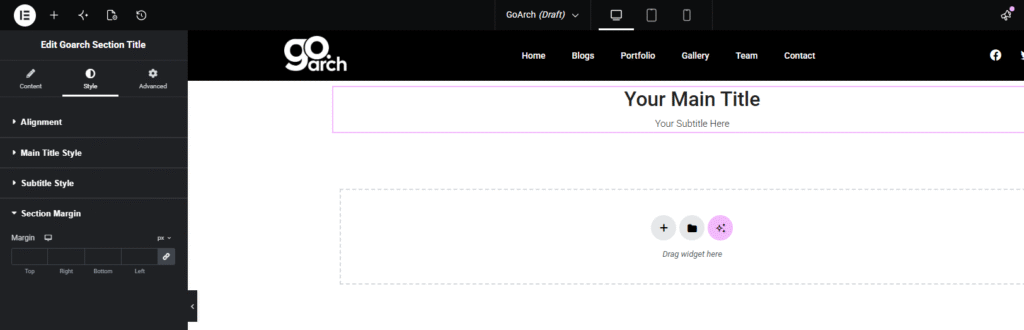
- Margin: Modify the margin parameters surrounding the entire composite widget block container. Use this option to cleanly define whitespace borders relative to upper or lower layout elements on the page.
Advanced Tab
The Advanced Tab includes native Elementor layout controls. From here, you can manage advanced padding offsets, configure custom z-index priorities, trigger entrance animation styles, implement custom CSS styling hooks, or define conditional viewport hide/show options across Desktop, Tablet, and Mobile devices.
Tips & Best Practices
- Establish Hierarchy: Always configure the Main Title Style typography size to be visually larger and heavier than the Subtitle Style to preserve clear reading patterns for your site visitors.
- Device Spacings: Utilize the small device visibility icons located next to the Alignment and Margin settings to test and customize spacing reductions on mobile environments so texts do not wrap awkwardly.
- Keep Descriptions Clean: Avoid writing paragraphs within the Subtitle text field. For optimal visual design layout, stick to concise phrases ranging between 3 to 7 words.
Troubleshooting
My title and subtitle are overlapping on tablet and mobile viewports
This typically points to an excessively tight, manual Margin or layout Line-Height adjustment made within the Typography settings panel. Reset the line-height parameters or use unlinked pixel bounds inside the Main Title Style margin layout to create breathability between the text blocks.
The texts are not aligning correctly with the rest of my section column
Ensure that no manual asymmetric margins are active inside your Section Margin properties. If your column elements are left-aligned, make sure the responsive toggle switch inside the widget Alignment module is explicitly set to Left instead of Center.