
How Can We Help?
GoArch Testimonials V1
The Goarch Testimonials V1 widget is a sleek, conversion-boosting Elementor element designed to showcase client reviews, customer success quotes, and professional endorsements in a structured grid layout. By arranging user avatars, statements, names, and company roles side-by-side, it helps build immediate social proof and credibility for architecture firms, creative agencies, and commercial projects.
Feature Overview
- Repeater-Based Review Management: Effortlessly add, clone, or reorder individual client reviews within an intuitive itemized list.
- Responsive Column Distribution: Control how many client cards span across the grid row for clean presentation sizing.
- Built-in Query & Sorting Controls: Limit the total number of visible cards and sort entries systematically by order preferences.
- Precise Text & Backdrop Styling: Fine-tune backgrounds, border curves, and separate color/typography profiles for the testimonial quote, author title, and company subtext.
Step-by-Step Instructions
Follow these clear configuration steps to deploy the Goarch Testimonials V1 block:
- Launch your target page workspace layout within your active Elementor editor canvas.
- Search for Goarch Testimonials V1 via the elements panel query bar on the left side.
- Drag the widget item and drop it directly into your preferred section container row.
- Populate your client descriptions, names, company labels, and avatar photos under the Content tab.
- Navigate to the Style tab to polish layout background shades, border radius roundness, and text legibility scales.
Explanation of Settings
Content Tab
The Content tab enables you to structure individual review content and manage overarching grid filters and entry paths.
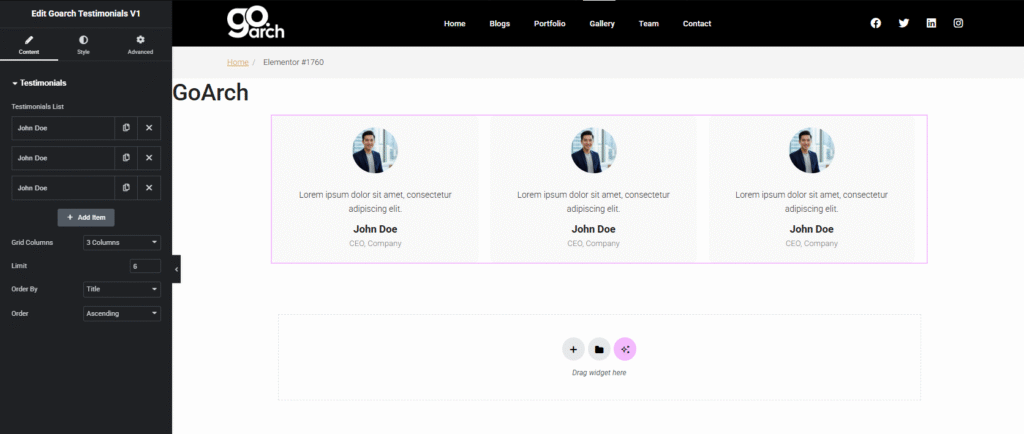
Testimonials
- Testimonials List: View, arrange, copy, or delete individual review elements. Click + Add Item to append a blank card block to your grid.
- Inside each item, you can assign the client’s quote text, upload an avatar image, and input their name and designation metrics.
- Grid Columns: Establish the horizontal distribution layout pattern for your items across a row by selecting a preset column count (e.g., 3 Columns).
- Limit: Set a numerical ceiling (e.g.,
6) to cap the maximum number of review cards that can render inside this specific grid wrapper. - Order By: Define the structural rule used to organize your items (e.g., Title, ID, or Date).
- Order: Pair with your sorting rule to arrange items in an Ascending or Descending loop structure.
Style Tab
The Style tab features dedicated parameters to dictate the frame container designs and font formatting specifics.
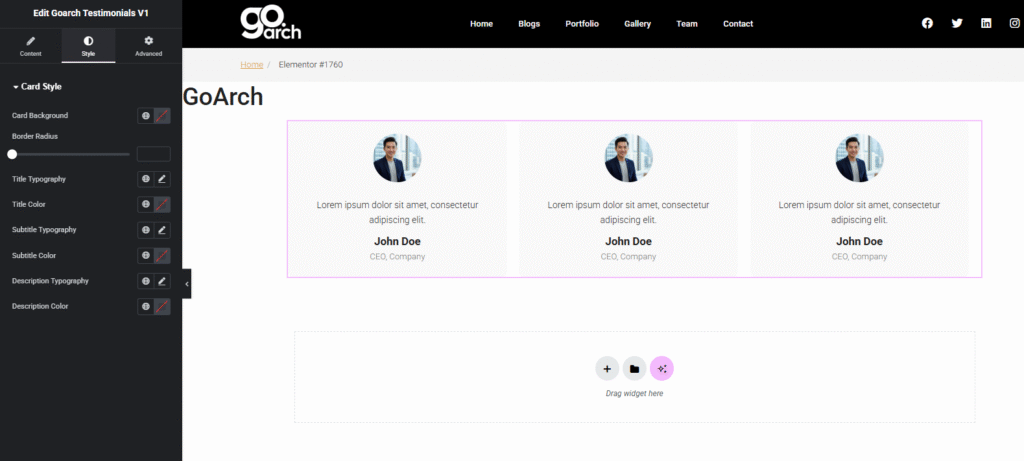
Card Style
- Card Background: Select a clean solid background color fill, transparent overlay canvas, or custom brand swatch to apply behind the client card layers.
- Border Radius: Use the interactive slider or numerical pixel coordinate inputs to round off sharp corner profiles for each individual review block wrapper.
- Title Typography & Color: Control the font families, font sizes, thickness styling, and color paint specific to the author’s primary name string (e.g., John Doe).
- Subtitle Typography & Color: Individually manage font sizing, tracking, and color palettes applied to the company position subtitle lines (e.g., CEO, Company).
- Description Typography & Color: Dictate the styling scale, leading lines, and font weights designated for the core textual testimonial statement block.
Advanced Tab
The Advanced Tab includes standard, native Elementor structural behaviors. Use this section if your website requires custom exterior margin padding adjustments, scroll-driven entrance parallax animations, unique container z-index priorities, custom developer CSS classes, or targeted responsive breakpoint rules to intentionally display or hide the feedback block across desktop, tablet, or smartphone devices.
Tips & Best Practices
- Symmetry in Quote Lengths: To keep your testimonial layout visually consistent and balanced, try to use customer quotes that are roughly identical in length. If one card features a short sentence and another holds a massive paragraph, it creates an unaligned horizontal rhythm.
- High-Quality, Professional Avatars: Always secure clear, well-lit headshots for client images. Crop them to standard square dimensions before uploading; the widget will cleanly mask them into professional circles automatically.
- Incorporate Targeted Keywords: Encourage your clients to name drop specific project features or services they loved (such as “commercial design” or “renovation”). This weaves natural, contextually relevant SEO signals into your page content.
Troubleshooting
Review cards are failing to show up past a certain number
Check your Limit input setting under the Content tab. If this option is inadvertently set lower than the amount of items inside your Testimonials List repeater pool, any extra review entries past that limit cap will be completely restricted from showing up on the front end.
Text colors blend in and become completely unreadable
If your quote elements or client titles vanish on the page, check the Card Background option under your Style tab. Ensure there is a strong visual contrast mismatch between your background fill and your text typography colors (e.g., dark text layers matching with an ultra-light card background).