
How Can We Help?
Image lazy loading
Architectural and interior design websites rely heavily on high-resolution photography and detailed portfolio renders. To help maintain fast loading speeds without compromising visual quality, the Goarch theme includes dedicated performance optimization settings built directly into the Theme Options panel.
Accessing Optimization Settings
To configure performance and image handling settings:
- Log in to your WordPress admin dashboard.
- Navigate to Theme Options > Optimizations in the left sidebar menu.
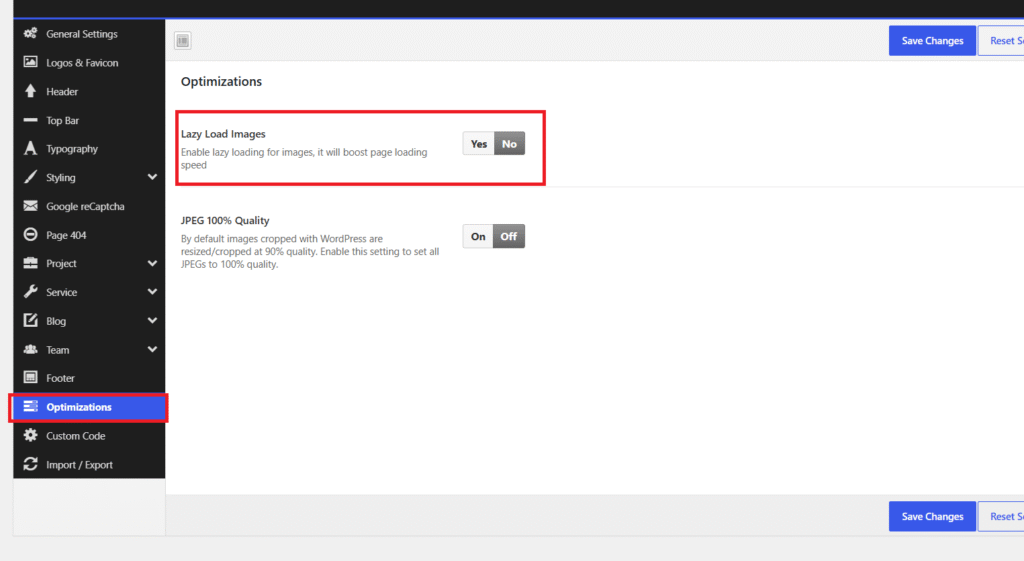
Optimization Options Breakdown
The Optimizations panel provides two essential image controls designed to balance site speed and visual fidelity:
1. Lazy Load Images
- Setting: Toggle between Yes or No.
- Description: Enables deferred loading for images on your website. When enabled, images outside the user’s immediate screen view are not downloaded until the visitor scrolls down to them.
- Benefits:
- Reduces initial page load time and bandwidth consumption.
- Significantly improves mobile user experience on image-heavy portfolio pages.
- Enhances Google Core Web Vitals (specifically Largest Contentful Paint / LCP).
2. JPEG 100% Quality
- Setting: Toggle between On or Off.
- Description: By default, WordPress automatically compresses and resizes uploaded JPEG images down to 90% quality to save server space and bandwidth. Enabling this option forces WordPress to preserve 100% full quality for all cropped thumbnail variations.
- Benefits:
- Preserves razor-sharp clarity for high-end architectural renders, blueprint diagrams, and interior design photography.
- Eliminates subtle compression artifacts across post thumbnails and project galleries.
Best Practices for Architectural Site Performance
- Enable Lazy Loading: It is recommended to set Lazy Load Images to Yes, especially if your pages feature extensive project showcases, team rosters, or multi-column service grids.
- Optimize Images Before Uploading: If you turn JPEG 100% Quality to On, ensure you pre-compress your source images (using tools like Photoshop, TinyPNG, or WebP conversion) prior to uploading them to prevent overly large image files from slowing down your web pages.
- Commit Your Settings: Remember to click Save Changes at the top right or bottom right of the panel to save your performance preferences.