
How Can We Help?
Installation process
Installing the Goarch theme and its required plugin dependencies is the first step toward launching your architectural or design portfolio website. This guide walks you through uploading the theme package file directly to your WordPress dashboard, activating the framework, and batch-installing essential extensions like Elementor and Goarch Core.
Feature Overview
- Direct Zip Package Upload: Easily bypass repository search limitations by uploading the compiled
goarch.zippackage directly through your dashboard. - Automated Dependency Detection: Native theme triggers detect required core plugins immediately upon activation and provide a one-click setup pathway.
- Batch Plugin Installation: Simultaneously download and install all bundled dependencies—including Elementor, Goarch Core, One Click Demo Import, and Redux Framework—with a single bulk action.
- Child Theme Architecture: Includes a dedicated
goarch_child.ziparchive to support safe CSS overrides and PHP modifications without losing updates.
Step-by-Step Instructions
Follow these steps to upload, activate, and configure the Goarch theme and its core plugin suite:
- Log in to your WordPress administrative dashboard, navigate to Appearance in the sidebar menu, and click Themes.
- Click the Add Theme button at the top of the workspace.
- Select Upload Theme to reveal the zip file upload box.
- Click Choose File, select the
goarch.ziparchive from your computer, and click Install Now. - Once the upload completes successfully, click the Activate link.
- Click Begin installing plugins in the top prompt bar (or navigate to Appearance > Install Plugins).
- Select the checkboxes next to all required plugins, choose Install from the Bulk Actions dropdown menu, and click Apply.
Detailed Walkthrough
Themes Dashboard & Package Upload
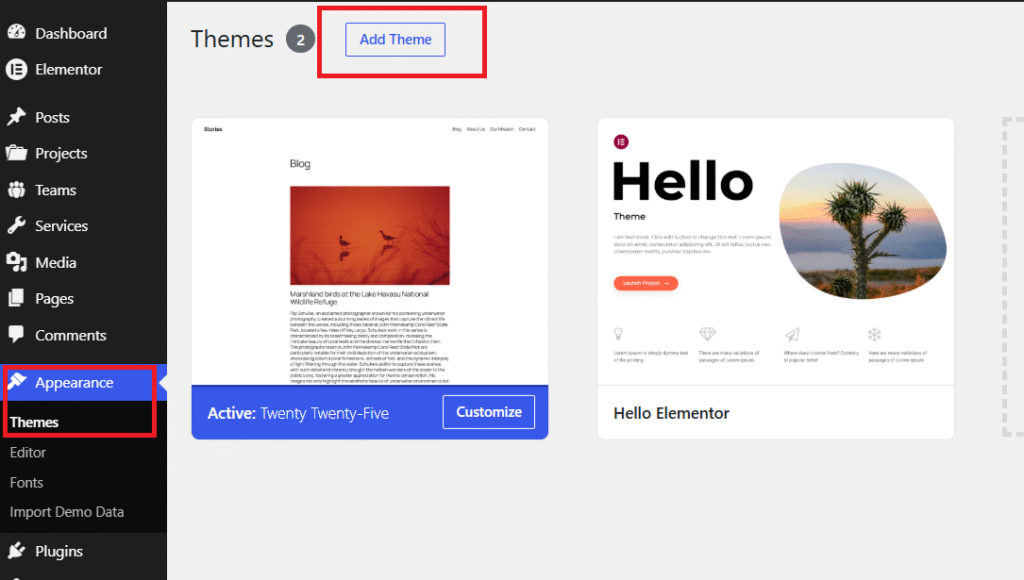
- Appearance > Themes: Access point in the WordPress sidebar to manage installed design frameworks and active layouts.
- Add Theme Button: Highlighted at the top of the dashboard in
image_cbad0d.png, this button opens the theme installation engine.
Upload Theme Screen
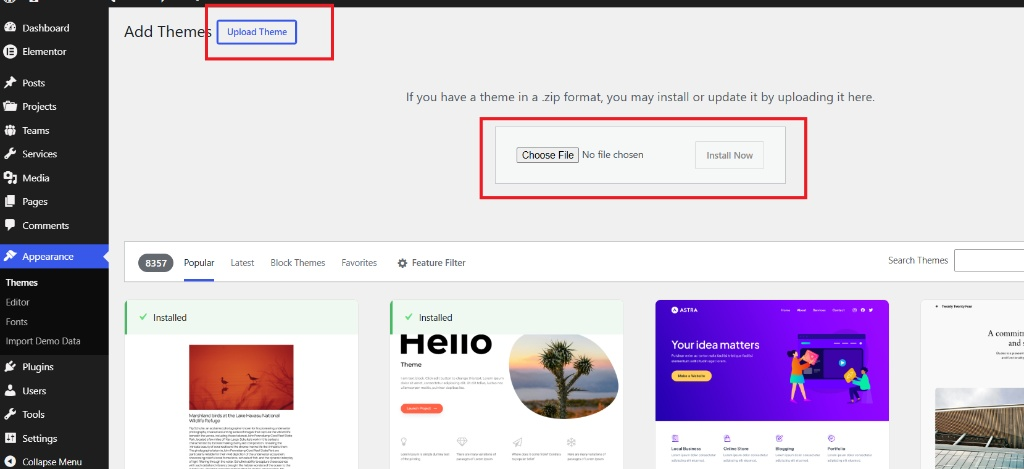
- Upload Theme Button: Toggles the manual file upload banner.
- Choose File & Install Now Block: Allows you to browse your local machine for the theme package file (
goarch.zip) and execute the automated server installation.
Selecting the Goarch Package
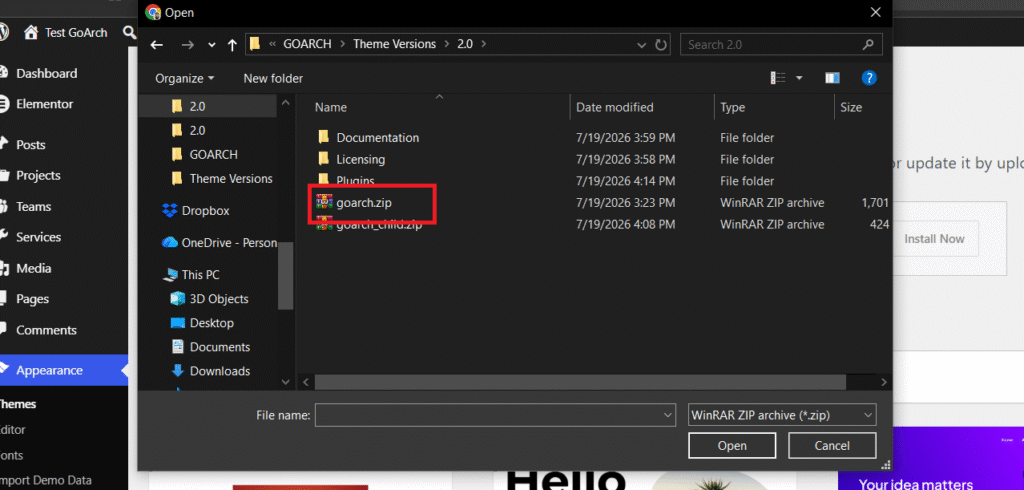
- goarch.zip Archive: The primary parent theme file highlighted in
image_cbb037.png. This is the exact archive you must select for installation. - goarch_child.zip Archive: The starter child theme package provided for developers who plan to perform custom template overrides or advanced code edits.
Theme Activation
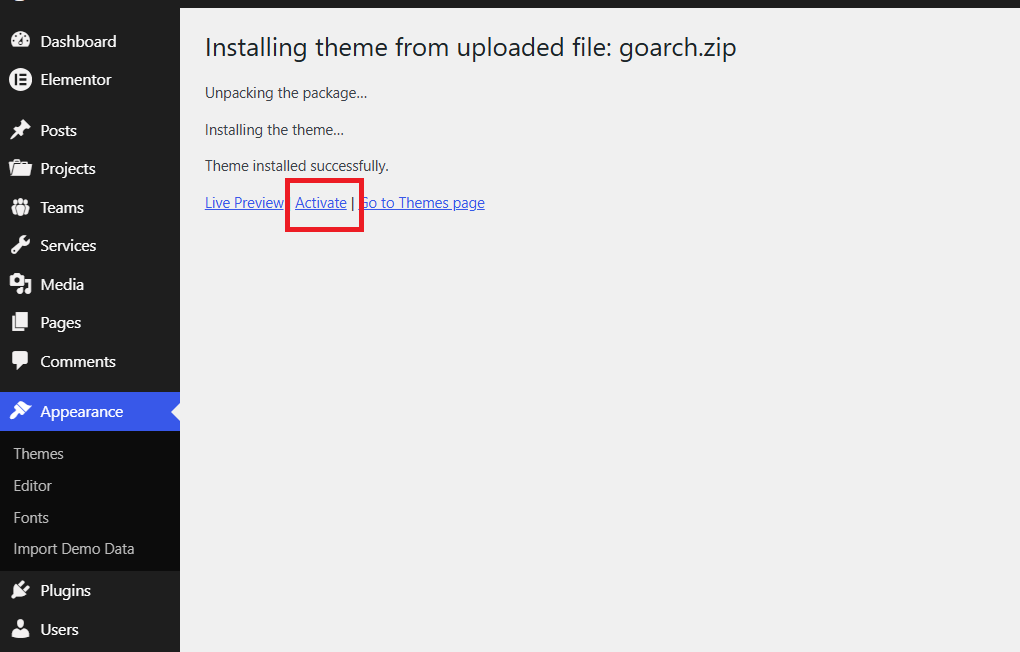
- Activate Link: Click this link immediately after unpacking completes to set Goarch as your site’s active theme framework.
Installing Required Core Plugins
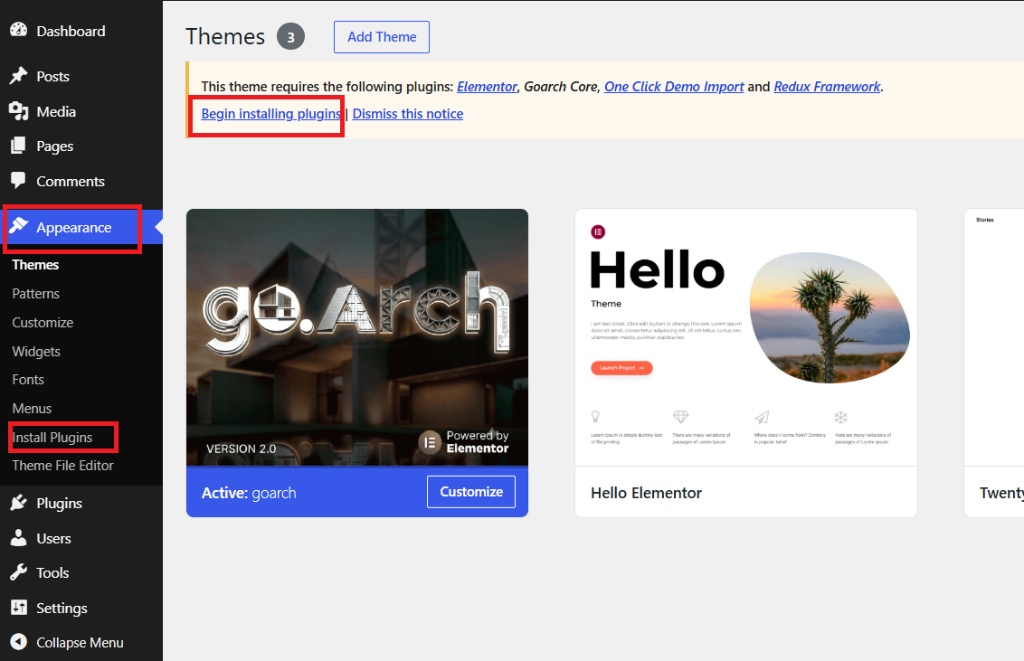
- Active: goarch (Version 2.0): Confirms that Goarch 2.0 is live on your WordPress installation.
- Begin installing plugins Prompt: The top administrative alert bar detailing all required theme extensions (
Elementor,Goarch Core,One Click Demo Import, andRedux Framework). - Appearance > Install Plugins Menu: Sidebar shortcut highlighted in
image_cbb3dd.jpgto manage theme extensions at any point.
Batch Plugin Installation Workspace
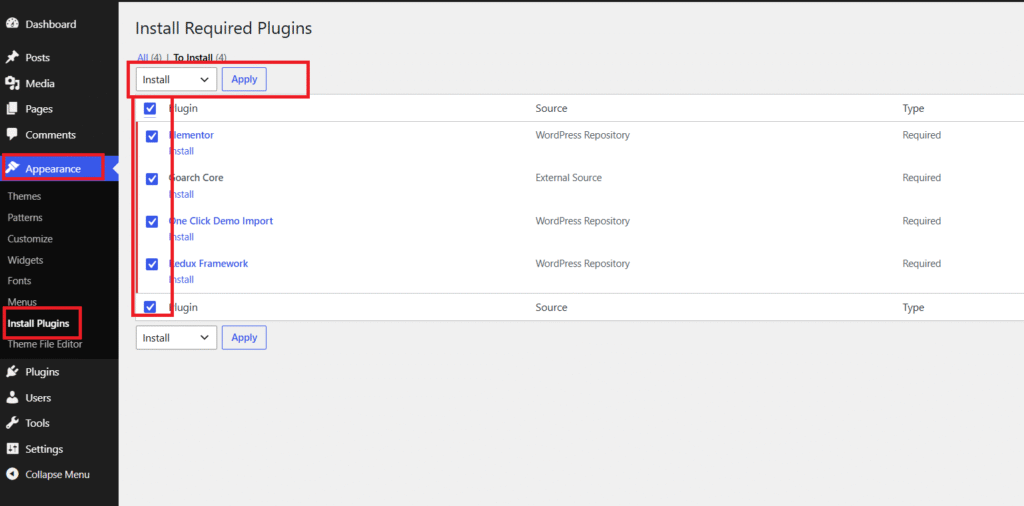
- Bulk Selection Checkbox: Check the top checkbox next to “Plugin” to select all required extensions in one click (
Elementor,Goarch Core,One Click Demo Import,Redux Framework). - Bulk Actions Dropdown (Install) & Apply Button: Set the dropdown option to Install and hit Apply to trigger simultaneous batch installation for all core dependencies.
Tips & Best Practices
- Unzip the Master Purchase Folder First: Marketplace downloads often package documentation, licensing files, and theme folders into a single zip file. Make sure to extract the downloaded master package on your computer first so you can upload the specific
goarch.zipfile found inside theTheme Versionsfolder. - Install Plugins Prior to Demo Import: Always complete the plugin installation step for
Goarch Core,Elementor, andRedux Frameworkbefore importing demo content. Importing demo pages without active core plugins can cause layout widgets and global settings to be missed. - Activate the Child Theme for Custom Code: If you plan to customize template files, edit
functions.php, or write extensive custom CSS, upload and activategoarch_child.zipimmediately after installing the parent theme. This ensures your changes remain intact when updating the parent theme in the future.
Troubleshooting
Upload fails with a “The package could not be installed” or “Are you sure you want to do this?” error
This error typically occurs if you attempt to upload the unextracted master download folder instead of the specific goarch.zip file, or if your server’s upload_max_filesize limit is set too low (e.g., 2MB). Make sure you select goarch.zip from inside the extracted purchase directory. If the error continues, contact your hosting provider to increase your PHP upload limits (upload_max_filesize and post_max_size) to at least 32MB.
Required plugins are installed but theme widgets and options remain missing
Sometimes plugins are successfully installed via the bulk installer but remain in an inactive state. If your dashboard options or Elementor widgets do not appear after installation, navigate to Appearance > Install Plugins (or Plugins > Installed Plugins), select all four required Goarch plugins, choose Activate from the Bulk Actions menu, and click Apply to activate them all.