
How Can We Help?
A 500 Internal Server Error
When building or updating your WordPress site with Elementor, encountering a 500 Internal Server Error when trying to save changes can bring your workflow to a halt. You click Update or Save, only to be met with a spinner that hangs indefinitely or an error message stating that the save failed.
A 500 Internal Server Error is a generic server-side error, which means the server encountered an unexpected condition that prevented it from fulfilling the request. In Elementor, this usually boils down to resource exhaustion or server memory limits.
Below is a step-by-step troubleshooting guide to resolve the 500 error and get your page editor saving smoothly again.
1. Increase the WordPress Memory Limit
The most common cause of a 500 error when saving in Elementor is running out of PHP memory. Complex page builders require significant memory allocation to compile and process page structures.
How to Fix:
- Access your WordPress root directory via FTP or your host’s File Manager (e.g., Hostinger hPanel or cPanel).
- Locate and edit the
wp-config.phpfile. - Add the following line right above the
/* That's all, stop editing! Happy publishing. */line:

- Save the file and reload your Elementor editor to see if the issue persists.
2. Increase PHP Max Input Vars and Execution Time
If your page contains many elements, widgets, or complex nested sections, the default server limits for processing form variables might be exceeded during a save action.
How to Fix:
Edit your server’s php.ini file or .htaccess file to raise input limits:
Via php.ini:
max_input_vars = 5000
max_execution_time = 300
post_max_size = 64M
upload_max_filesize = 64M
Via .htaccess:
php_value max_input_vars 5000
php_value max_execution_time 300
3. Check for Plugin Conflicts
Sometimes, third-party plugins—especially add-ons for Elementor, caching tools, or security plugins—conflict with Elementor’s AJAX saving mechanism.
How to Fix:
- Navigate to Plugins > Installed Plugins in your WordPress dashboard.
- Deactivate all plugins except Elementor and Elementor Pro (if applicable).
- Try saving your page again in Elementor:
- If it saves successfully, reactivate plugins one by one to pinpoint the conflicting plugin.
- If the error remains, proceed to the next step.
4. Enable Elementor Switch Loader Method
If your server setup uses specific rewrite rules or proxy configurations that interrupt front-end loading and saving, changing the loader method in Elementor can bypass the block.
How to Fix:
- Go to Elementor > Settings in your WordPress admin menu.
- Click on the Advanced tab.
- Locate Switch Editor Loader Method and change the dropdown setting to Enable.
- Click Save Changes and try opening and saving your page again.
5. Inspect PHP Error Logs
Because a 500 error is generic, checking the actual PHP error log will tell you the exact file, line number, or function causing the crash.
How to Fix:
- Open your
wp-config.phpfile and temporarily turn on debugging by setting:
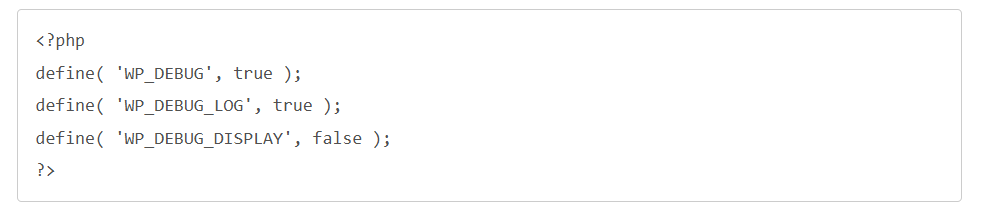
- Attempt to save the page in Elementor to trigger the error.
- Open the
debug.logfile created inside thewp-content/directory to read the specific stack trace.
Summary Checklist
| Action | Recommended Target Value |
|---|---|
| PHP Memory Limit | 256M or 512M |
| PHP Max Input Vars | 3000 to 5000 |
| PHP Max Execution Time | 180 to 300 seconds |
| Editor Loader Method | Enable (if server rules block saving) |