How Can We Help?
Typography
Typography Settings
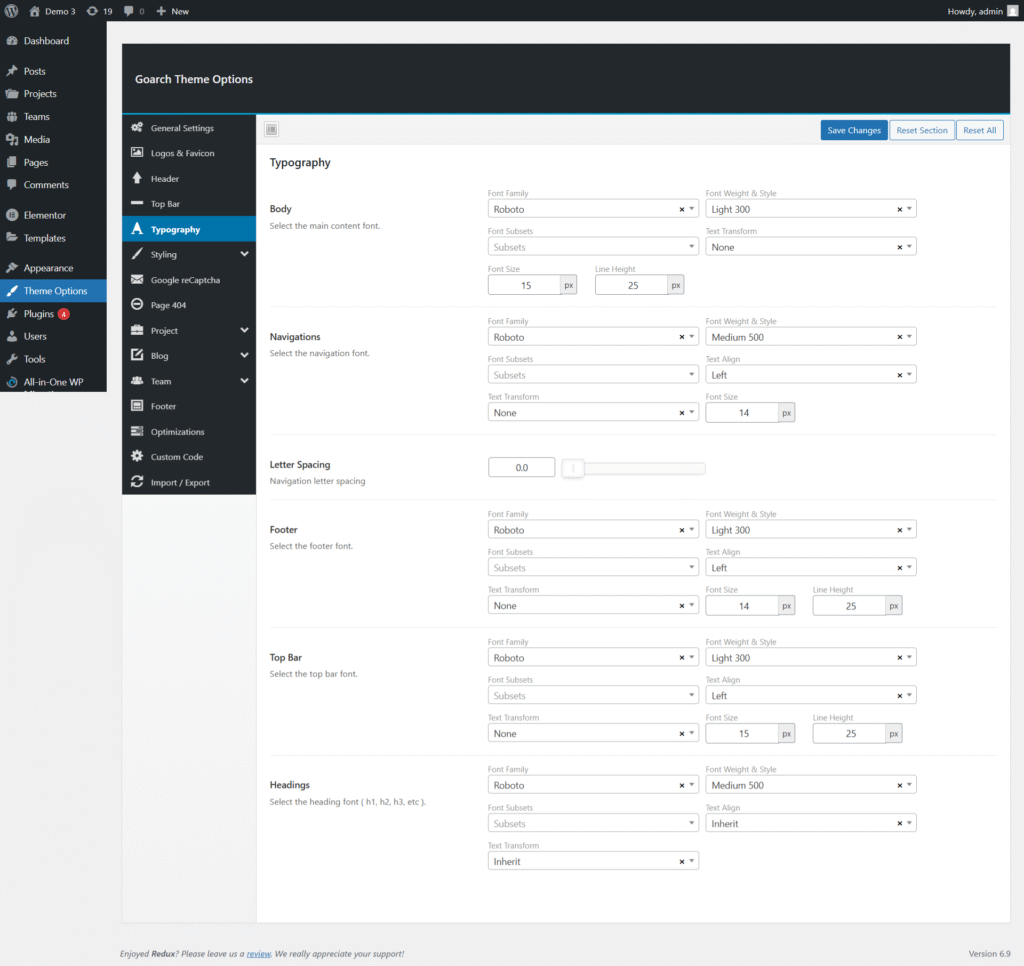
The Typography panel in the GoArch theme allows you to fully control the fonts, sizes, weights, alignment, and spacing used across your website. These settings help maintain design consistency and improve readability.
You can access typography options from:
WordPress Dashboard → GoArch Theme Options → Typography
Body Typography
Section: Body
Controls the main content font used across pages and posts.
Available Options
- Font Family
Select the primary font for body content. - Font Weight & Style
Choose the thickness and style of the font (e.g., Light, Regular, Medium). - Font Subsets
Enable font subsets if required (e.g., Latin, Cyrillic). - Text Transform
Control text casing:- None
- Uppercase
- Lowercase
- Capitalize
- Font Size (px)
Set the default font size for body text. - Line Height (px)
Adjust spacing between lines for better readability.
Navigation Typography
Section: Navigations
Controls the typography of the main menu and navigation items.
Available Options
- Font Family
Select the font for navigation menus. - Font Weight & Style
Define the font thickness for menu items. - Font Subsets
Choose font subsets if applicable. - Text Align
Set navigation text alignment:- Left
- Center
- Right
- Text Transform
Change text appearance (uppercase, lowercase, etc.). - Font Size (px)
Define the font size for menu items.
Navigation Letter Spacing
Option: Letter Spacing
This option controls the spacing between characters in navigation menu text.
- Use a small value for compact menus
- Increase spacing for a more modern or minimal look
💡 Recommended for improving menu readability in uppercase text.
Footer Typography
Section: Footer
Controls the font styling for footer content.
Available Options
- Font Family
Select the font used in the footer area. - Font Weight & Style
Choose the font thickness. - Font Subsets
Enable required font subsets. - Text Align
Set footer text alignment. - Text Transform
Apply capitalization rules. - Font Size (px)
Adjust the footer text size. - Line Height (px)
Control spacing between footer text lines.
Top Bar Typography
Section: Top Bar
Controls the typography of text displayed in the Top Bar.
Available Options
- Font Family
Choose the font for Top Bar content. - Font Weight & Style
Set font thickness. - Font Subsets
Enable subsets if required. - Text Align
Align Top Bar text left, center, or right. - Text Transform
Apply text casing rules. - Font Size (px)
Set the Top Bar font size. - Line Height (px)
Adjust line spacing for better alignment.
Headings Typography
Section: Headings
Controls typography for all heading tags (H1, H2, H3, H4, H5, H6).
Available Options
- Font Family
Select the font used for all headings. - Font Weight & Style
Define heading thickness and style. - Font Subsets
Choose font subsets if needed. - Text Align
Set heading alignment. - Text Transform
Apply uppercase or inherited styles.
⚠️ Note: Individual heading sizes may also be controlled by page builders or custom CSS.
Saving Typography Settings
After making changes:
- Click Save Changes to apply typography settings
- Use Reset Section to restore default typography
- Use Reset All to reset all theme options
Best Practices
- Use consistent fonts for body and headings
- Avoid too many font families for better performance
- Ensure sufficient line height for readability
- Test typography on mobile devices