
How Can We Help?
Google reCaptcha
Google reCAPTCHA Settings
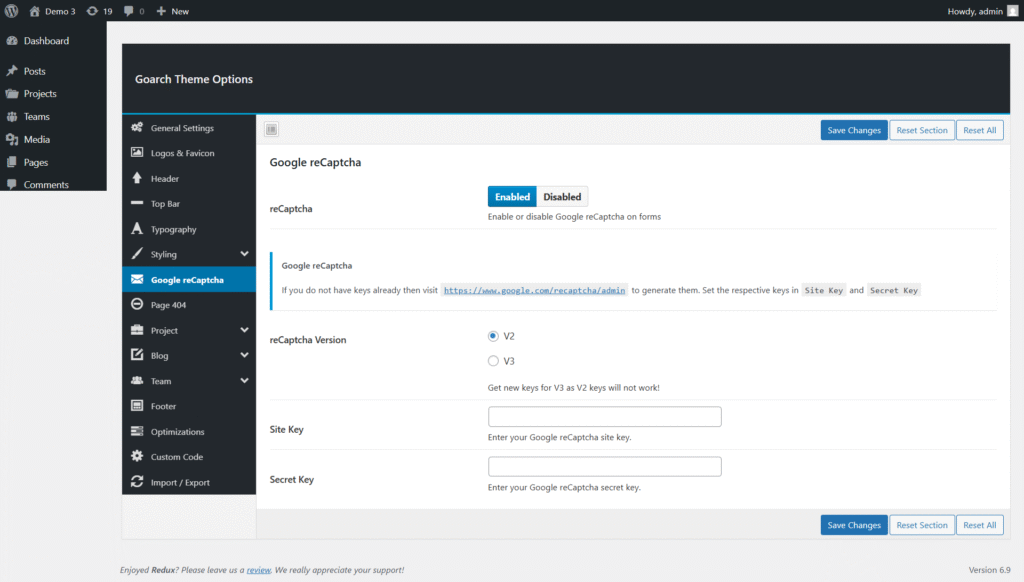
The Google reCAPTCHA settings in the GoArch theme help protect your website forms from spam, bots, and automated submissions. By enabling reCAPTCHA, you can improve site security while ensuring legitimate users can submit forms without issues.
You can find these settings at:
WordPress Dashboard → Theme Options → Google reCAPTCHA
Google reCAPTCHA Options Overview
1. reCAPTCHA Status
Purpose:
Enables or disables Google reCAPTCHA across supported forms on your website.
Available options:
- Enabled – Activates reCAPTCHA protection
- Disabled – Turns off reCAPTCHA completely
Usage tip:
Keep reCAPTCHA enabled on production sites to reduce spam form submissions.
2. reCAPTCHA Version
Purpose:
Selects the version of Google reCAPTCHA to be used.
Available options:
- V2 – Displays a visible challenge (e.g., “I’m not a robot”)
- V3 – Works invisibly in the background and scores user interactions
Important note:
- V2 and V3 require different keys
- Existing V2 keys will not work with reCAPTCHA V3
3. Site Key
Purpose:
Stores your Google reCAPTCHA Site Key, which is required to display reCAPTCHA on the frontend.
How to get it:
- Visit the Google reCAPTCHA admin panel
- Register your domain
- Copy the generated Site Key and paste it here
4. Secret Key
Purpose:
Stores your Google reCAPTCHA Secret Key, used to verify user responses securely on the server.
Security tip:
- Keep this key private
- Do not share it publicly or include it in client-side code
Key Generation Note
If you do not already have reCAPTCHA keys, you can generate them from the Google reCAPTCHA admin panel. Make sure the selected reCAPTCHA version in your Google account matches the version chosen in the GoArch theme options.
How to Create Google reCAPTCHA Keys
To generate your Site Key and Secret Key, follow these steps:
- Visit the Google reCAPTCHA admin panel:
https://www.google.com/recaptcha/admin - Sign in with your Google account.
- Click Create to register a new site.
- Choose the reCAPTCHA version (V2 or V3) that matches your theme setting.
- Enter your domain name(s).
- Accept the terms and submit the form.
- Copy the generated Site Key and Secret Key.
- Paste the keys into the corresponding fields in Theme Options → Google reCAPTCHA.
Useful Links
- Google reCAPTCHA Admin Console
https://www.google.com/recaptcha/admin - Google reCAPTCHA Documentation
https://developers.google.com/recaptcha - reCAPTCHA V2 Documentation
https://developers.google.com/recaptcha/docs/display - reCAPTCHA V3 Documentation
https://developers.google.com/recaptcha/docs/v3