How Can We Help?
Footer
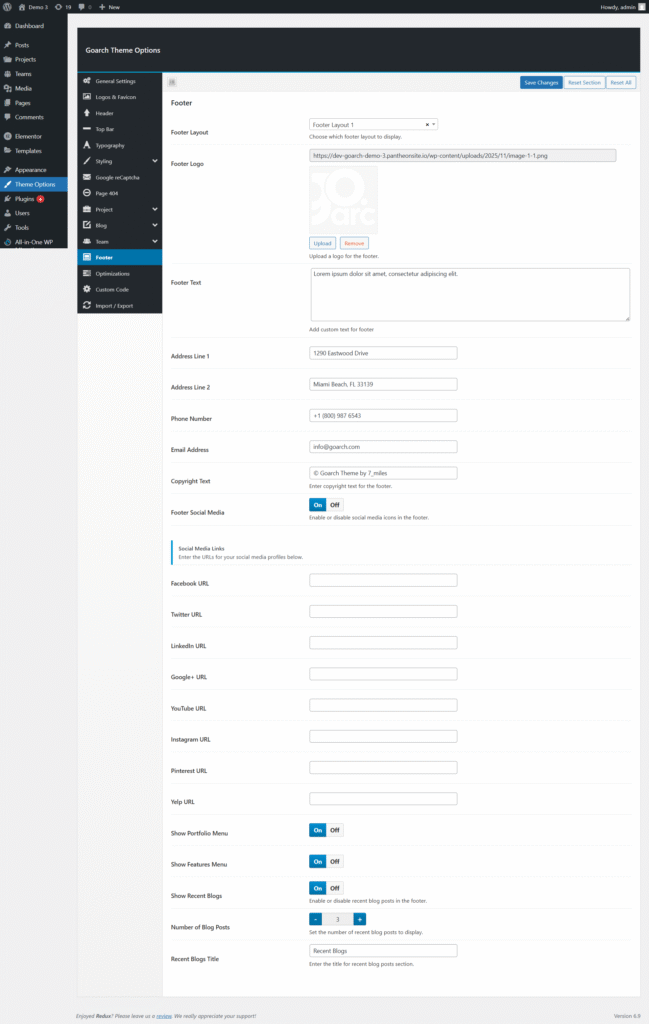
Footer Settings – GoArch Theme
The Footer Settings section in the GoArch theme allows you to fully customize the content, layout, and functionality of your website footer. These options help you display branding, contact details, navigation links, social media profiles, and recent blog posts in a clean and organized way.
You can access these settings from:
WordPress Dashboard → GoArch Theme Options → Footer
Footer Layout
Option: Footer Layout
Description:
Choose which footer layout style to display across your website.
Available Options:
- Footer Layout 1
(Additional layouts may be available depending on theme version.)
This option controls the overall structure and widget arrangement of the footer area.
Footer Logo
Option: Footer Logo
Description:
Upload a logo specifically for the footer area.
How it works:
- Click Upload to add a footer logo from the Media Library.
- Click Remove to delete the current logo.
Using a footer-specific logo is useful if you want a simplified or monochrome version of your main logo.
Footer Text
Option: Footer Text
Description:
Add custom text to the footer, such as a short company description or tagline.
This field supports plain text and is ideal for brief informational content.
Address Information
Address Line 1
Enter the primary street address for your business.
Address Line 2
Enter additional address details such as city, state, and ZIP code.
These fields are commonly used to display your business location in the footer.
Contact Information
Phone Number
Enter your business phone number as you want it displayed in the footer.
Email Address
Enter the email address that visitors can use to contact you.
Copyright Text
Option: Copyright Text
Description:
Set the copyright notice displayed at the bottom of the footer.
Example:
© GoArch Theme by 7_miles
You may include your company name, current year, or legal notice.
Footer Social Media
Option: Footer Social Media
Description:
Enable or disable social media icons in the footer area.
Settings:
- On – Display social media icons.
- Off – Hide social media icons.
Social Media Links
When Footer Social Media is enabled, you can enter URLs for your social profiles below. Only filled fields will be displayed.
Available Social Networks:
- Facebook URL
- Twitter URL
- LinkedIn URL
- Google+ URL
- YouTube URL
- Instagram URL
- Pinterest URL
- Yelp URL
⚠️ Leave any field empty to hide that social icon.
Footer Menus
Show Portfolio Menu
Enable or disable the Portfolio menu in the footer.
Show Features Menu
Enable or disable the Features menu in the footer.
These options allow you to display additional navigation links for quick access.
Recent Blogs in Footer
Show Recent Blogs
Enable or disable the display of recent blog posts in the footer.
Number of Blog Posts
Set how many recent blog posts are displayed.
Recent Blogs Title
Enter a custom title for the recent blog posts section (e.g., Recent Blogs).
This feature is useful for increasing blog visibility and user engagement.