
How Can We Help?
GoArch Team
The Goarch Team widget is a dedicated Elementor element designed to showcase your real estate agents, brokers, architects, or staff members in a clean, organized layout. It pulls profiles directly from your team custom post types, giving you control over query filters, grid counts, and design cosmetics.
Feature Overview
- Dynamic Member Querying: Automatically generate staff directories or manually highlight specific individuals using their unique IDs.
- Responsive Grid Layouts: Control the precise number of columns and items displayed per page across different screen sizes.
- Independent Style Controls: Tailor the typography and sizing for member names, and apply custom borders or box shadows to profile headshots.
Step-by-Step Instructions
Follow these instructions to add the Goarch Team widget to your page layout:
- Open your target page or template with the Elementor builder.
- In the left-hand elements pane, search for Goarch Team.
- Drag the widget and drop it into an active section or column on your canvas.
- Modify your text listings under the Content tab.
- Jump over to the Style tab to match fonts, colors, and shadows to your company’s branding.
Explanation of Settings
Content Tab
The Content tab sets the parameters for how many team profiles are pulled into the layout, how they are ordered, and how the base layout handles columns.
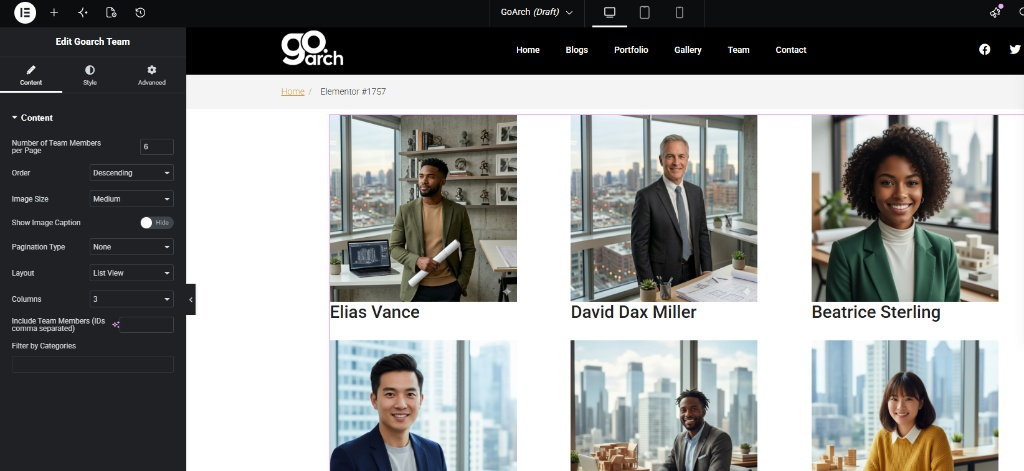
- Number of Team Members per Page: Enter a baseline limit for the total number of profile cards to render simultaneously (e.g.,
6). - Order: Choose whether profiles display in Ascending or Descending order based on their creation date.
- Image Size: Set the resolution tier for member headshots (e.g., Thumbnail, Medium, Large, Full).
- Show Image Caption: Toggle this switch to display or hide built-in caption text layers across the images.
- Pagination Type: Select how users navigate through extra profiles if your roster exceeds the page limit (e.g., None, Numeric).
- Layout: Choose the structural format for rendering items, such as List View.
- Columns: Define the grid structure by picking how many profiles sit side-by-side horizontally (e.g.,
3). - Include Team Members (IDs comma separated): Filter the list to display specific staff members only. Type their raw WordPress post IDs separated by a comma with no spaces (e.g.,
45,72,101). - Filter by Categories: Limit the output to specific departments or taxonomy groupings by adding target categories here.
Style Tab
The Style tab provides localized design modules to configure your text properties and layout aesthetics.
Title Style
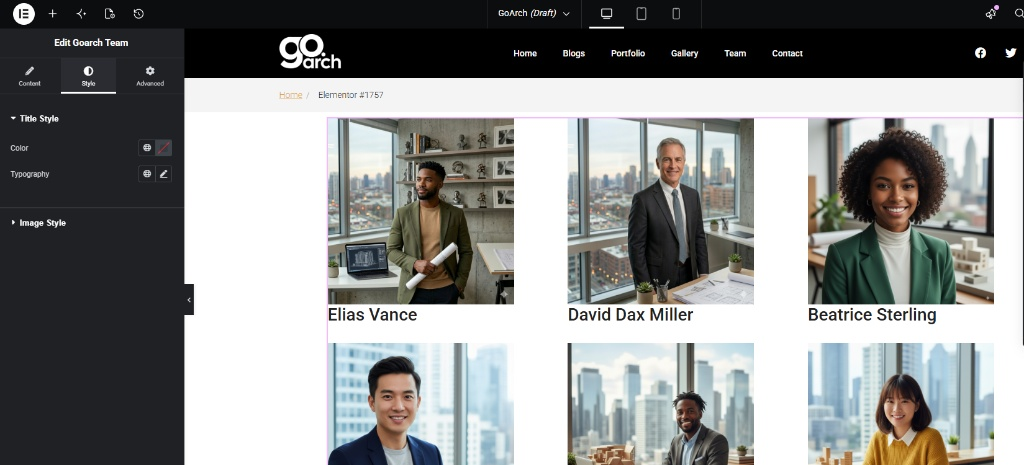
- Color: Use the color picker or enter a global hex code to change the text color of the team member’s name.
- Typography: Click the pencil icon to configure custom typography settings including font family, text scale, line-height, and font weights.
Image Style
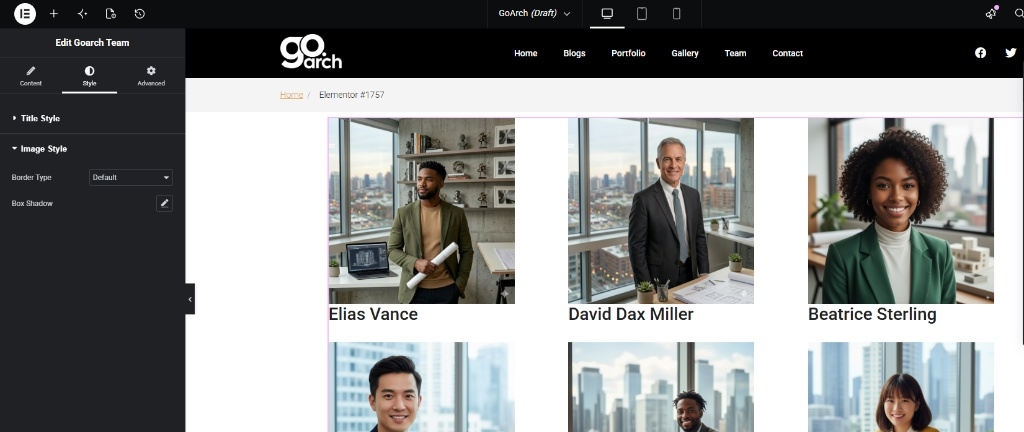
- Border Type: Introduce borders surrounding the profile images (options include Default, Solid, Double, Dotted, Dashed, or None).
- Box Shadow: Click the pencil tool to apply shadow blurs, custom spread values, or shadow placement offsets to give the headshot wrappers more depth.
Advanced Tab
The Advanced Tab includes standard Elementor settings. Use this section to apply exact margins and padding blocks, implement entrance animations, assign custom CSS IDs/Classes, or control device visibility behaviors (Desktop, Tablet, Mobile switching).
Tips & Best Practices
- Unified Headshot Scaling: To prevent uneven grids on your frontend, upload member photos with identical dimensions and framing heights.
- Optimize Loading Efficiency: Stick to the Medium or Large Image Size option rather than Full size images. This keeps page loads crisp without degrading mobile display quality.
- Department Filtering: For agencies with separate sales, management, and legal teams, use separate instances of this widget filtered by category on unique layout sections rather than forcing one massive list.
Troubleshooting
Why are my columns overlapping or uneven?
This occurs when the uploaded profile headshots do not share identical aspect ratios. If modifying the Image Size option does not fix it, crop your source image assets to uniform square or portrait aspect ratios inside the WordPress Media Library.
A newly added team member is missing from the list
Verify that the profile post is fully set to Published instead of Draft. If you are filtering the module by specific post IDs under the Include Team Members box, ensure the new member’s ID was appended cleanly with commas.