
How Can We Help?
GoArch Page Title
The Goarch Page Title widget is a streamlined Elementor element designed to display main page headings cleanly and efficiently. It ensures your page headings match your theme’s architectural aesthetic while offering critical SEO control by letting you select proper semantic HTML tags and responsive alignment properties.
Feature Overview
- SEO-Friendly Architecture: Explicitly define your heading tags (from H1 downward) to build a clean semantic outline for search engines.
- Responsive Alignment: Easily adjust your text orientation (Left, Center, Right) to match your page column layouts.
- Targeted Styling: Take complete control over your page header typography scaling and color branding directly within the style panel.
Step-by-Step Instructions
Follow these steps to add a Goarch Page Title widget to your canvas layout:
- Launch your page template or individual page using the Elementor editor interface.
- In the left-side widget library search bar, type Goarch Page Title.
- Drag the widget block from the panel and drop it into your preferred upper column or section block.
- Set the structural header markup parameters under the Content tab.
- Navigate over to the Style tab to establish custom color palettes and text font scaling bounds.
Explanation of Settings
Content Tab
The Content tab provides key settings to dictate how the layout wrapper communicates with search engines and positions itself on screen.
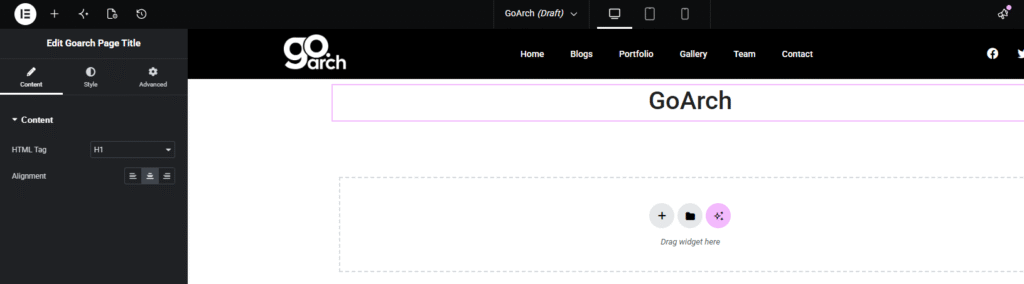
- HTML Tag: Select the structural markup tag applied to your title text from the dropdown menu (e.g., H1). This is critical for configuring proper on-page SEO ranking structure.
- Alignment: Define the text flow orientation across your section. Choose between Left, Center, or Right alignments using the standard responsive selection controls.
Style Tab
The Style tab controls the aesthetic presentation layer of your page header text string.
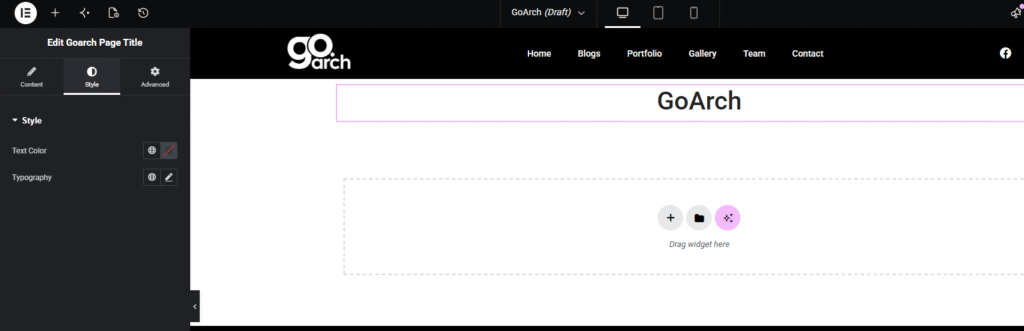
Style
- Text Color: Click the color swatch or the global icon to select your main theme branding color or apply a direct custom hex values rule.
- Typography: Click the pencil edit tool to access deep text layout configurations including font family type, specific font weights, size scaling, line-height definitions, and character letter-spacings.
Advanced Tab
The Advanced Tab includes native Elementor platform options. Use this area to customize specific container rules such as precise wrapper paddings and margins, enter creative entry animation parameters, supply targeted custom CSS ID or class naming markers, or adjust conditional visibility parameters for varying viewport device sizes.
Tips & Best Practices
- The One H1 Rule: For ideal search engine optimization (SEO), configure only one Goarch Page Title per individual page to use the H1 tag format. For subheadings lower in the layout canvas, transition down to H2 or H3 structures.
- Scale Responsively: Always utilize the viewport toggle icons next to your Typography or Alignment configuration lines to preview how large text titles wrap across mobile screens, adjusting sizes downward if lines break clumsily.
Troubleshooting
My page title text size isn’t updating on the frontend
This usually means a global theme typography override or a conflicting template style wrapper is locking the header text dimensions. Ensure you have activated custom sizing configurations directly within the widget’s Style → Typography panel to safely bypass external CSS rules.
The text alignment looks off center on small mobile devices
Check that your alignment settings haven’t been altered on the mobile viewport preview mode. Click the small desktop display icon next to the Alignment option inside your Content tab, switch to the Mobile icon view, and explicitly choose the centered configuration for smaller displays.