
How Can We Help?
GoArch Image Banner
The Goarch Image Banner widget is an essential Elementor element designed to create visually striking hero sections, call-to-action blocks, and atmospheric header banners. It allows you to overlay a structured title, a multi-line description, and a clickable link directly on top of a fully responsive background image asset.
Feature Overview
- High-Impact Visuals: Display premium background imagery with automated layout container scaling.
- Text Content Overlays: Feature clean, readable text hierarchies containing both primary titles and supporting descriptions.
- Flexible Alignment Rules: Swap text orientation instantly to perfectly match asymmetric webpage layouts.
- Dynamic Links: Turn the entire banner region into an active click-through link to drive user engagement toward target project or listing pages.
Step-by-Step Instructions
Follow these clear instructional steps to set up a Goarch Image Banner component:
- Open your page template using the active Elementor page builder interface.
- Type Goarch Image Banner into the left-hand side panel widget library.
- Drag the widget from the panel list and place it inside a full-width or boxed section column.
- Upload your primary graphic asset and fill out the text overlays under the Content tab.
- Head to the Style tab to fine-tune your background behavior, text legibility, and typography scaling parameters.
Explanation of Settings
Content Tab
The Content tab houses structural controls to define your banner graphic, adjust overlay copy strings, establish routing links, and select basic layout parameters.
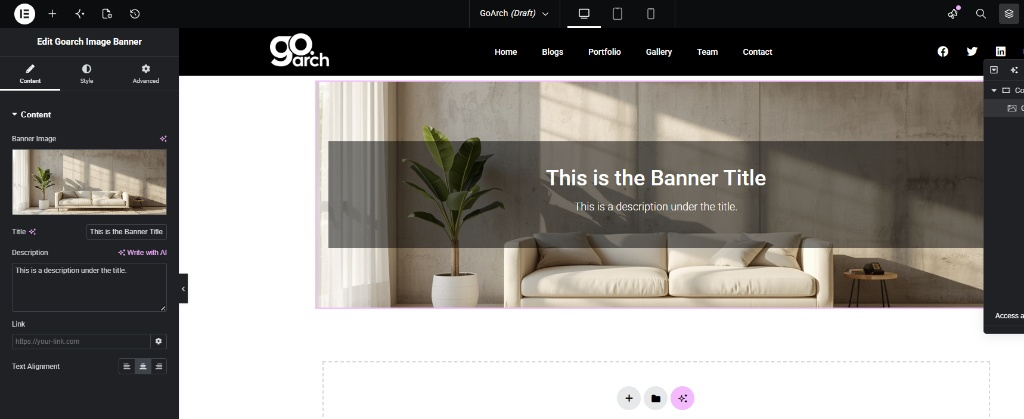
- Banner Image: Click the media upload window to select or upload a high-resolution background asset from your WordPress Media Library.
- Title: Input your primary section statement or welcome header line inside this field (e.g., This is the Banner Title).
- Description: Enter an explanatory subtext or supporting message statement inside this multi-line input box.
- Link: Specify an absolute destination URL (e.g.,
[https://your-link.com](https://your-link.com)) to direct visitors upon clicking the banner. Click the gear icon alongside the box to configure link targets (such as opening in a new window). - Text Alignment: Adjust the collective horizontal alignment position of the overlay text blocks. Choose between Left, Center, or Right alignments using the standard responsive grid buttons.
Style Tab
The Style tab controls the aesthetic layout layers, color blending styles, and typography configurations for your banner.
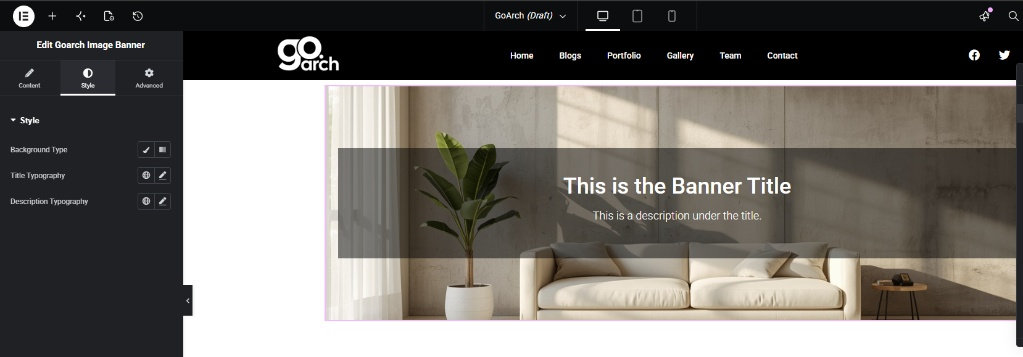
- Background Type: Customize the rendering behavior of your banner overlay block. Select the Classic paintbrush icon to apply solid background tint overlays, or click the Gradient icon to blending multiple hex values across your asset wrapper to boost text readability.
- Title Typography: Click the pencil edit icon to fine-tune the title font configuration (including font-family selections, text sizing values, line heights, and layout styles).
- Description Typography: Access dedicated text layout sliders to specify target sizing tiers, line-height limits, and font family choices for your supporting description block.
Advanced Tab
The Advanced Tab includes default native Elementor engine layout settings. From this panel, you can control specific padding fields and outer margin boundaries, trigger sophisticated entry motion animations, append custom layout tracking via CSS IDs or Classes, or manage device viewport visibility breakpoints across Desktop, Tablet, and Mobile layouts.
Tips & Best Practices
- Ensure Text Contrast: When placing light white text blocks directly over bright source photographs, use the Background Type overlay setting inside the Style tab to introduce a semi-transparent dark classic overlay color block. This preserves accessible reading contrast levels.
- Image Orientation: For expansive full-width header positions, utilize horizontal landscape photographs cropped to a consistent aspect ratio to prevent unnatural vertical clipping on desktop screens.
- Audit Mobile Layout Heights: Always toggle the device preview icons located alongside your text and padding settings. Banners with large font treatments may require scaled-down typography size rules to render cleanly on narrower smartphone displays without breaking columns.
Troubleshooting
My banner link is driving visitors to a 404 Error page
Verify that you have written out the complete absolute URL address within the Link field container under the Content tab. Ensure the link includes the mandatory protocol prefix (e.g., https://) rather than starting directly with raw text paths.
The background graphic looks heavily pixelated or blurry
This typically indicates that the source image resolution uploaded into WordPress is too small for full-width screen layouts. Ensure you are uploading wide landscape image formats (ideally at least 1920px in width) to handle broad structural columns without relying on automated browser stretching.