
How Can We Help?
GoArch Blog Post Carousel
The Goarch Blog Posts Carousel widget is a dynamic, post-filtering element designed to showcase your latest insights, project updates, and articles in an interactive, sliding carousel layout. Perfect for architecture blogs, corporate news feeds, and design journals, this widget automatically queries your WordPress posts and arranges them cleanly with customizable meta details and navigation prompts.
Feature Overview
- Dynamic Querying Engine: Filter and display your live articles automatically based on designated categories and custom post-count limits.
- Pre-Built Design Variations: Easily switch between structural layout alternatives using built-in grid version controls.
- Granular Meta Visibility: Manage front-end real estate by toggling author names, publish dates, and category taxonomy labels on or off.
- Touch-Friendly Sliding Layout: Built on a responsive framework featuring side-mounted navigation arrows for fluid user interaction.
Step-by-Step Instructions
Follow these clear structural steps to deploy a Goarch Blog Posts Carousel row:
- Launch your target page or section framework within the active Elementor editor panel.
- Type Goarch Blog Posts Carousel in the left-hand elements search bar.
- Drag the widget and drop it into a full-width container section or page column.
- Set your visual framework, article filters, and metadata preferences under the Content tab.
- Save your progress or proceed to global style overrides to match the widget aesthetics with your site’s branding.
Explanation of Settings
Content Tab
The Content tab provides structural options to control the layout style, targeted content filters, and metadata toggles for your carousel elements.
Layout
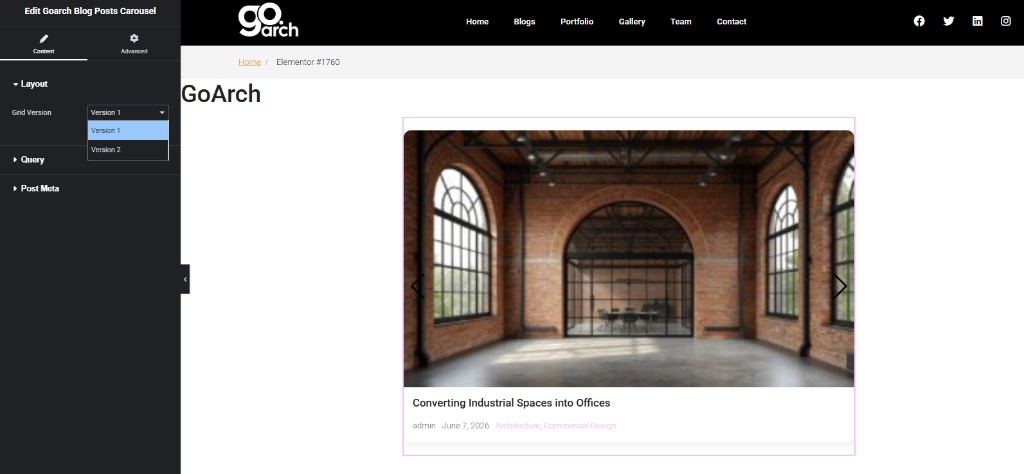
- Grid Version: Choose between pre-configured presentation styles from the dropdown menu (e.g., Version 1 or Version 2) to change how the featured image overlay, title blocks, and navigation elements stack.
Query
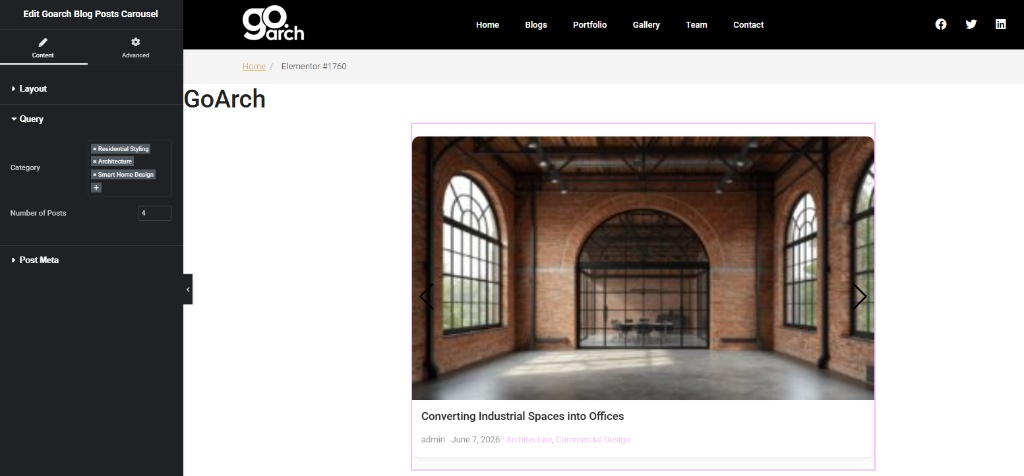
- Category: Filter which blog posts are fetched into the slider loop. Type to search or choose from your active taxonomy tags (such as
Residential Styling,Architecture, andSmart Home Design) to isolate specific content streams. - Number of Posts: Input a precise numeric value (e.g.,
4) to define the maximum number of post items allowed to load into the carousel loop.
Post Meta
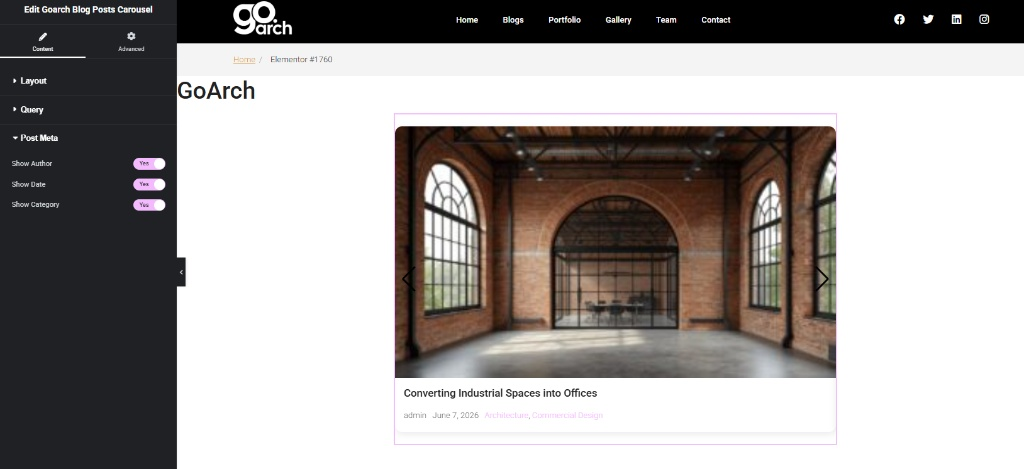
- Show Author: Toggle to Yes to show the author’s username profile directly below the post heading, or No to hide it.
- Show Date: Toggle to Yes to render the chronological publication date (e.g.,
June 7, 2026). - Show Category: Toggle to Yes to keep descriptive category label links visible underneath your title headers, helping users navigate to related topics.
Advanced Tab
The Advanced Tab includes standard, global Elementor engine layout behaviors. Use this section if your presentation layout calls for specific container margin configurations, custom entrance scroll animations, custom CSS class tracking IDs, or responsive breakpoint configurations to selectively hide or show the post carousel across mobile hardware profiles.
Tips & Best Practices
- Enforce Featured Image Uniformity: Carousels look best when all slide panels match perfectly. Ensure all your blog posts utilize featured images with identical aspect ratios (such as $16:9$ or $4:3$) to prevent the slider box from shifting up and down as it cycles through items.
- Curate Targeted Experiences: Instead of pulling every post from your database, create a designated “Featured” category in WordPress. Select only that category inside the Query filters to build a high-impact, curated news showcase on your homepage.
- Optimize for Mobile Interaction: When showing the carousel on smaller screens, consider toggling off secondary metadata fields like the author or date under the Post Meta block. This declutters the text areas, making titles highly scannable on mobile viewports.
Troubleshooting
The carousel wrapper is empty or completely missing on the front end
This occurs if the parameters defined inside your Query parameters do not match any live, published content. Double-check that the tags selected in your Category field contain active posts, and ensure those specific posts are set to Published rather than Draft status.
Post titles and meta labels are overlapping or cropped
If text lines are crowding each other inside the carousel cards, review your global typography settings or your theme’s default line-height rules. You can also adjust formatting variables by moving into standard Elementor typography overrides to increase line spacing and padding margins.