
How Can We Help?
GoArch Main Slider
Goarch Main Slider Widget
The Goarch Main Slider widget serves as a streamlined structural bridge between the Elementor page builder and the powerful Slider Revolution plugin. It is specifically engineered to embed full-screen cinematic slideshows, animated hero presentations, and interactive architectural project galleries smoothly into your Goarch theme layouts without dealing with messy shortcodes.
Feature Overview
- Seamless Slider Revolution Integration: Instantly call and render any slide module created within the Slider Revolution environment.
- Shortcode-Free Workflow: Select your pre-configured slider directly from a dynamic dropdown menu instead of manually copying and pasting shortcode strings.
- Unified Layout Control: Utilize standard Elementor page structures to control the wrapper constraints, margins, and visibility viewports of your primary hero slideshows.
Step-by-Step Instructions
Follow these steps to deploy and activate a slideshow using the Goarch Main Slider widget:
- Open your target template or page section using the active Elementor editing panel.
- Search for Goarch Main Slider within the left-hand elements menu index.
- Drag the widget and drop it into your preferred layout container (typically at the absolute top of a page as a hero section).
- Choose your predefined slideshow from the slider alias list under the Content tab.
- Save or publish your changes to see the fully animated slider render live on your front-end page.
Explanation of Settings
Content Tab
The Content tab contains the core selection rule required to route your pre-built slideshow assets into the Elementor layout canvas.
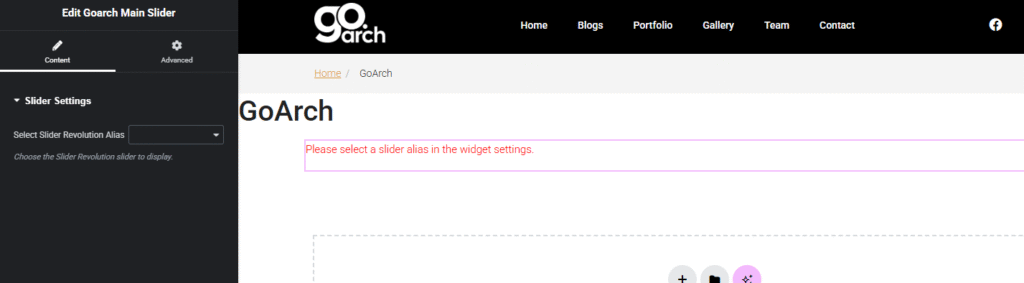
Slider Settings
- Select Slider Revolution Alias: This dynamic dropdown menu automatically scans your WordPress database for existing Slider Revolution slideshow installations. Click the selection box to choose the specific slider alias you want to feature inside this container.
Note on Styling: Because all individual slide design metrics—such as layer animations, background videos, typographic weights, button overlays, and slide transitions—are fully styled inside the native Slider Revolution editor interface, this widget intentionally omits a separate Style Tab within Elementor.
Advanced Tab
The Advanced Tab provides access to Elementor’s standard suite of parent layout controls. Use these panels if your slideshow container requires custom layout margin offsets, entrance visibility animations, precise z-index layout stacking, targeted developer CSS classes/ID anchors, or responsive visibility parameters to display or hide the entire slider block across different desktop, tablet, or mobile phone screens.
Tips & Best Practices
- Build Your Slider First: The Goarch Main Slider widget functions exclusively as a display mechanism. Before configuring this widget in Elementor, navigate to Slider Revolution in your WordPress dashboard sidebar to construct or import your desired slide templates.
- Match Section Widths: For a breathtaking, high-end look, set the parent Elementor section layout width to Full Width and adjust the columns gap parameter to No Gap. This ensures your slideshow spans edge-to-edge across the visitor’s desktop view without unsightly white borders.
- Optimize Slide Assets: Since hero sliders are usually the first thing a user encounters, ensure any background images or video clips embedded inside your slider alias are aggressively compressed. This maintains rapid page speeds and high performance scores.
Troubleshooting
The canvas displays a red error notice reading “Please select a slider alias in the widget settings”
As shown in image_dfef5f.png, this system notice pops up automatically when a newly placed widget container has not been paired with a slideshow target yet. To clear the notice and render your slideshow, expand the Slider Settings drop-down menu on the left side and pick an active slider alias from your list.
The alias dropdown menu is completely empty
If you open the selection box and see no options available, it means no slideshow modules have been built or imported into the Slider Revolution plugin yet. Go back to your core WordPress Dashboard, click on Slider Revolution, and create at least one slider or import a demo package. Once a slider exists in the system, refresh your Elementor editor window, and the alias name will appear in the widget settings dropdown menu.